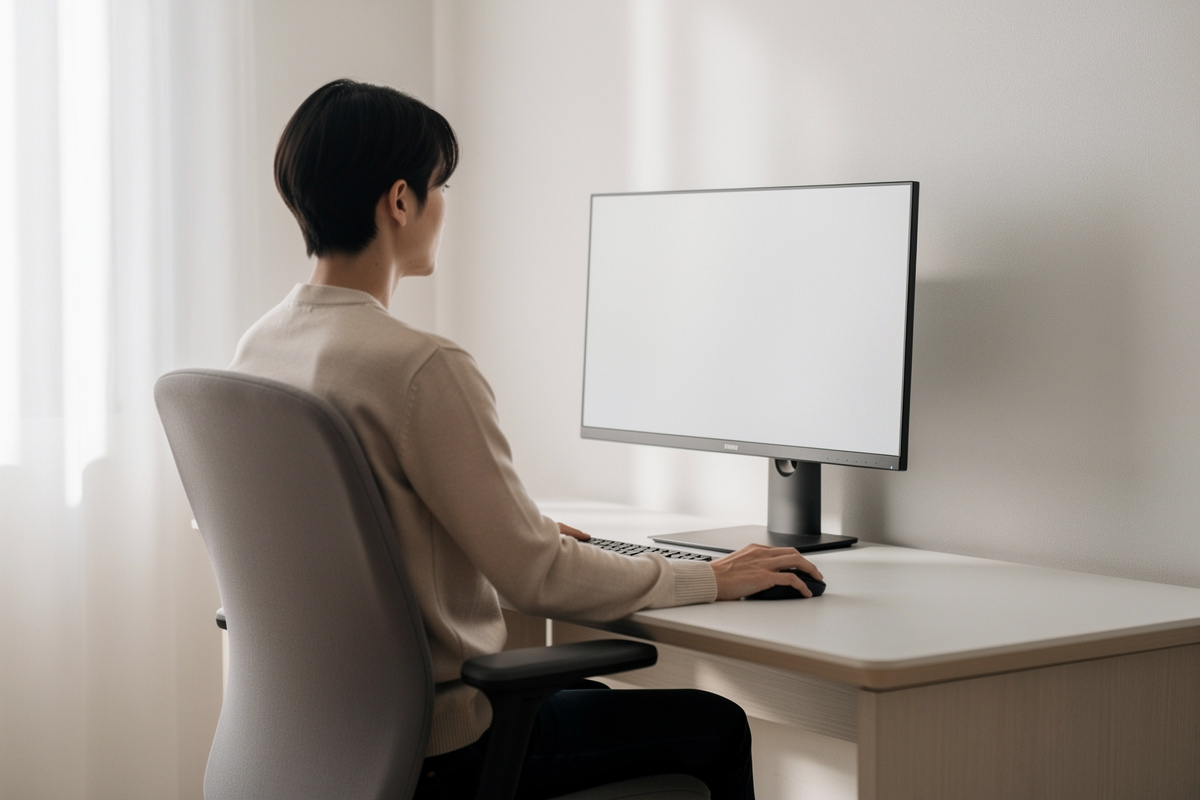

Getting your monitor height at eye level right is the second free fix in any desk setup, and like the first one — desk height — almost nobody measures it. They set the screen wherever the stand happens to land it and then spend the day with their chin tipped up or their gaze dropped to their lap. The rule is simple, it costs nothing, and the gotchas (bifocals, laptops, dual screens) are where the real expertise lives. This is comfort-and-geometry guidance, not medical advice.
I keep monitor top height and tilt in my setup log alongside desk height and distance, because the three move together — change one and you re-check the others. Here’s the rule, why it works, and the exceptions that trip people up.
The rule: top of the screen at or just below eye line
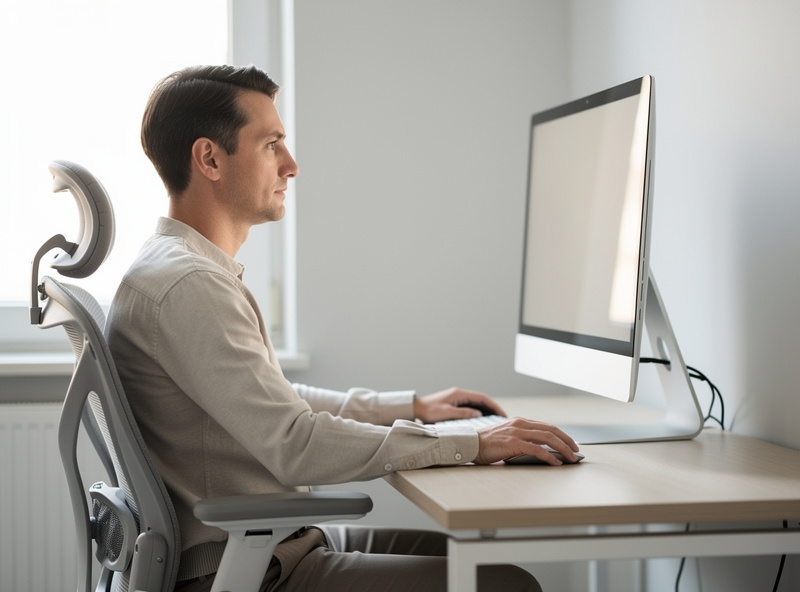
Sit the way you actually work, look straight ahead with your head level and neck relaxed, and note where your eyes naturally land. That horizontal gaze line is your reference. The top of your screen should sit at or just below that eye line, so your relaxed gaze falls into the upper third of the display and you look very slightly down at everything below it.
Slightly down is the operative phrase. A relaxed human gaze naturally rests a little below horizontal — you don’t hold your eyes level all day, you let them drop a few degrees. Positioning the screen so the bulk of it sits in that natural downward arc is what makes it comfortable. Put the screen too high and you tip your head back to read the top; too low and you drop your chin to your chest. Both are felt by late afternoon.
Why “top at eye line,” not center
People sometimes set the center of the screen at eye level, which puts the top of a tall modern panel well above where your head wants to be. The “top at or just below eye line” version accounts for the fact that your comfortable viewing zone runs downward from your horizontal gaze, not symmetrically around it. On a short 24-inch panel the difference is minor; on a tall 27-inch or a 32-inch in portrait it’s the difference between a relaxed neck and a tipped-back head. Anchor on the top edge and let the panel fall away below your eye line.
The one common exception: if you spend your day primarily in a single tall application — a long document, a code editor — some people prefer the screen a touch lower so the working area sits squarely in the comfortable zone. That’s fine. The rule is a starting point you adjust to your actual gaze, same as everything else on this site.
Most stands are too short — here’s what to do
The frustrating reality: the majority of monitor stands that ship in the box are too short to get the screen to eye line for an average-height adult sitting at a correctly-set desk. Manufacturers ship a stand that looks tidy on a showroom shelf, not one tuned to your eye line. So you’ll almost always need to raise the screen, and there are three honest options:
- The free fix: a stack of books or a sturdy box. Genuinely. If the screen needs to come up 8 cm, a couple of hardback books under the existing stand solves it for zero kronor. It’s not pretty, but it’s correct, and correct-and-ugly beats pretty-and-wrong every time.
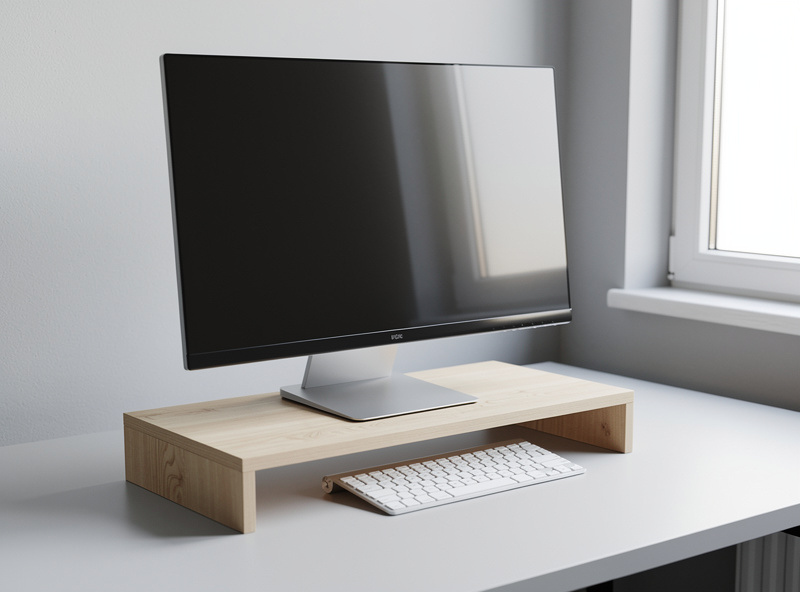
- A monitor riser. A purpose-made riser or shelf tidies up the book-stack approach and often adds a slot for the keyboard underneath.
- A monitor arm. The proper fix if you’re also fighting desk depth or running more than one screen — it decouples height from the stand entirely and lets you set eye line independent of distance.
I want to be clear that the book stack is not a joke or a placeholder. Plenty of well-dialed setups run a screen on a riser for years. The goal is the geometry, not the aesthetics; spend money only when money buys you something the books can’t, like reclaimed desk depth or multi-monitor flexibility.
The bifocal and progressive-lens exception
Here’s a gotcha that surprises people: if you wear bifocals or progressive lenses, the standard rule can work against you. With progressives, the reading portion of the lens is at the bottom, so to see the screen clearly through it you end up tipping your head back to look down your nose at a screen that’s at eye line — exactly the head position we’re trying to avoid. The common adjustment is to set the screen lower than the standard rule, sometimes noticeably so, so you’re looking through the reading zone with your head level rather than tipped back.
This is one of those genuine “your mileage varies” cases. If you wear progressives and the eye-line rule has you craning, drop the screen until your head is level and the screen is clear through your reading zone. The geometry serves your eyes and neck, not the other way around — and if you have a specific vision prescription situation, that’s a conversation for your optometrist, not a desk blog.
Laptops break the rule by design
A laptop cannot satisfy this rule on its own, because the screen is bolted to the keyboard. Raise the screen to eye line and the keyboard is up at your chest; drop the keyboard to a comfortable height and the screen is down in your lap. There’s no head position that fixes a built-in compromise. The only real solution is to separate them — lift the laptop on a riser or dock it to an external monitor at eye line, and add an external keyboard at elbow height. Once split, the laptop’s screen follows this rule exactly like any desktop monitor.
Dual monitors: where’s the eye line?
With two screens the question becomes which one anchors the eye line. The answer follows your usage. If you have a clear primary screen — the one you stare at most of the day — center it in front of you and set its top to eye line; the secondary sits beside it, angled in, and you accept that glancing to it costs a small head turn. If you split work genuinely evenly across two screens, some people center the seam between them and angle both inward, trading a small constant head rotation for symmetry. Either way, set the height of whichever screen owns your gaze, and match the second screen’s top edge to it so a glance across doesn’t also become a glance up or down. The neck-rotation budget of a side screen is its own topic; the height rule is the same.
Tilt: the small adjustment that finishes the job
Once height is set, tilt the screen back a few degrees so its surface is roughly perpendicular to your line of sight — your gaze hits the glass square instead of glancing off it. A screen at the right height but tilted flat-vertical can still throw overhead-light glare into your eyes; a slight backward tilt both squares your sightline and often kills a reflection. It’s a two-second adjustment that people skip, and it’s the difference between a screen that’s “about right” and one that’s dialed.
Putting it together
Find your relaxed eye line. Raise the screen — books, riser, or arm — until the top sits at or just below it. Tilt it back a few degrees. If you wear progressives, drop it lower until your head is level. If it’s a laptop, split the screen from the keyboard first. Then log the number, because the next time you change chairs or desk height, this one moves too. Five minutes, usually zero kronor, and your neck stops paying the daily tax.
Keep going
- The Correct Desk Height: Full Setup Guide — the geometry this height rule plugs into.
- Monitor Distance by Screen Size — set how far back before you set how high.
- Desk Height Calculator vs. the Elbow Rule — get the surface height first.
- Standing Desk Height — if your surface adjusts, here’s how to dial both sit and stand numbers.
- Ergonomics Glossary — eye line, negative tilt, VESA defined.
- Setup Gallery — measured configurations.
Frequently Asked Questions
How high should my monitor be?
Set the monitor so the top of the screen sits at or just below your seated eye line, with the display tilted slightly back. Your relaxed gaze, which naturally rests a little below horizontal, then lands in the upper third and you look very slightly down at the rest. Look straight ahead with your head level to find your eye line, then raise the screen to it.
Should the top or center of the monitor be at eye level?
Anchor the top of the screen at or just below eye line, not the center. Your comfortable viewing zone runs downward from your horizontal gaze rather than symmetrically around it, so centering a tall modern panel on eye level pushes its top too high and makes you tip your head back. Set the top edge and let the panel fall away below it.
What if my monitor stand is too short to reach eye level?
Most stock stands are too short. The free fix is a stack of sturdy books or a box under the stand to raise the screen the few centimeters it needs. A monitor riser tidies that up, and a monitor arm is the proper fix if you also need to reclaim desk depth or run more than one screen. The goal is the geometry, not the looks.
Where should my monitor be if I wear progressive lenses?
With progressive or bifocal lenses the reading zone is at the bottom of the lens, so the standard eye-line height can force you to tip your head back to see clearly. Many progressive wearers set the screen noticeably lower than the standard rule so they look through the reading zone with their head level. For a specific prescription, ask your optometrist.
How should I set monitor height with two monitors?
Decide which screen owns your gaze. If one is clearly primary, center it in front of you and set its top to eye line, with the secondary beside it. If you split work evenly, some people center the seam and angle both inward. Either way, match the second screen’s top edge to the first so glancing across does not also become looking up or down.
