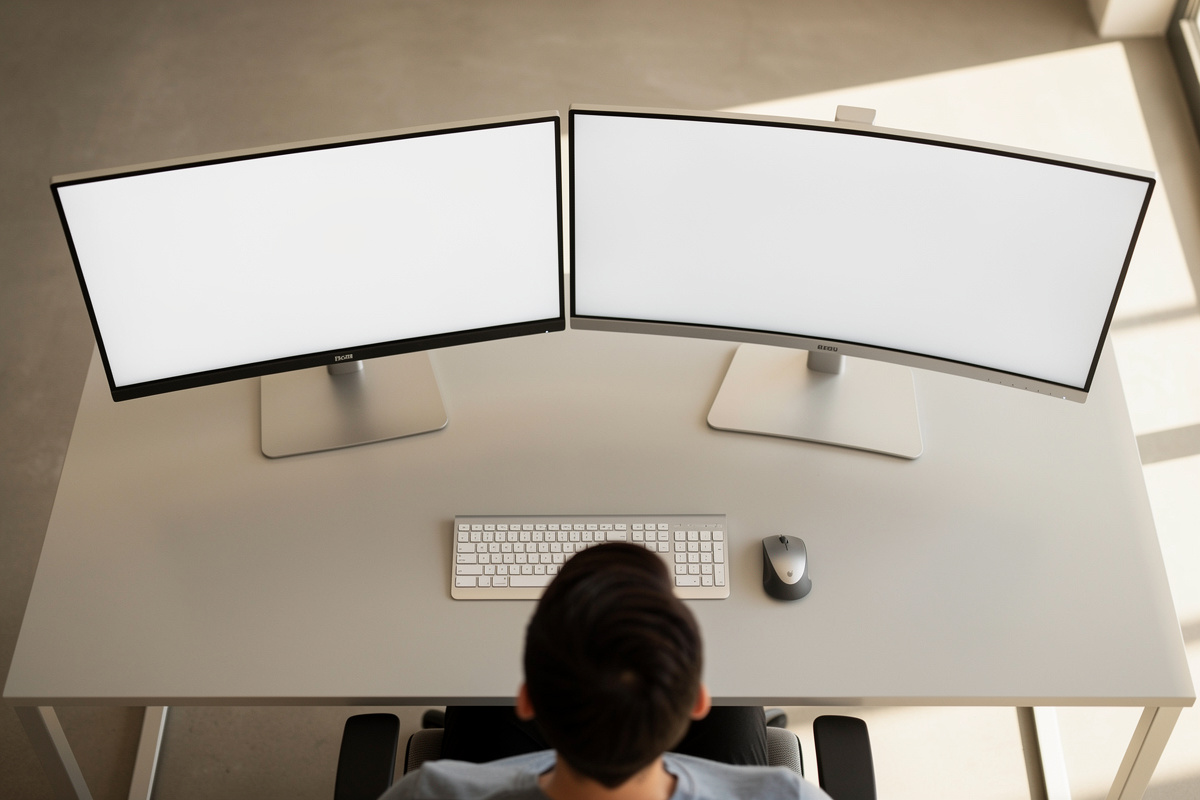

The right monitor distance by screen size is one of those free fixes that almost everyone gets wrong, because they position the screen by where the stand happens to put it instead of by where their eyes want it. A 24-inch panel and a 34-inch ultrawide do not belong at the same distance, and the difference is something you feel by the end of a long day, not something you reason about in the morning. I’ve measured the distances that actually felt right across every panel size on my own desk and logged them, and this is what came out. It’s comfort-and-geometry guidance, not medical advice.
The short version: bigger screens want to sit farther back. The longer version — why, how far, and how to measure it without guessing — is below, along with the one rule that survives every screen size.
The starting rule: roughly an arm’s length
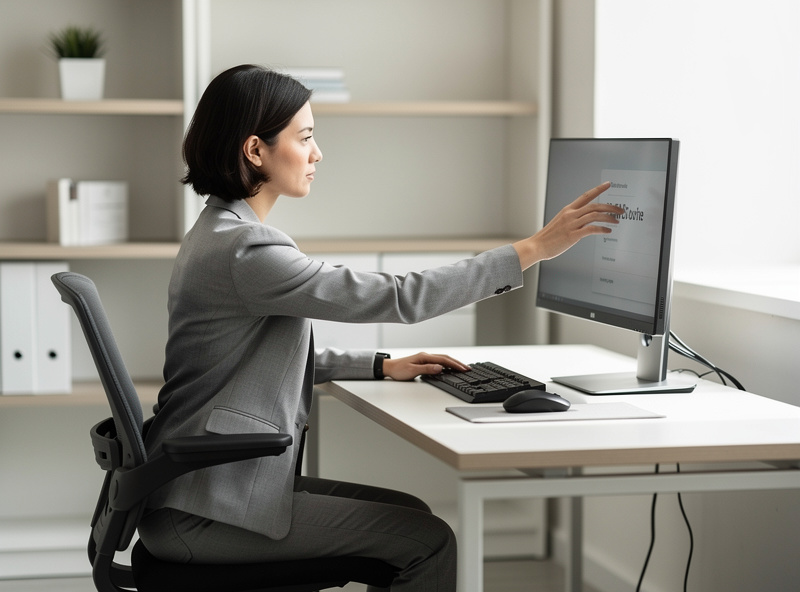
The honest baseline, the one I’d give anyone with no other information, is about an arm’s length away — sit normally, reach out, and your fingertips should just brush the screen. For a typical 24-to-27-inch monitor that lands somewhere around 50 to 70 cm from your eyes, and it’s a good default. But “arm’s length” is a starting gun, not a finish line, because it ignores two things that matter a lot: how big the screen is, and how large your text is scaled.
The reason distance interacts with size is simple geometry. A screen subtends an angle in your field of view, and the bigger the panel, the more of your vision it fills at a given distance. Sit a 32-inch monitor at the same 55 cm you’d use for a 24-inch and you’ll find yourself sweeping your eyes — and often your neck — across it to read the edges. Slide it back and the whole panel falls into a comfortable cone you can take in without turning your head.
Distance by screen size: my logged starting points
Here’s the table I actually work from. These are eye-to-screen distances I’ve found comfortable for general desk work at normal text scaling — starting points to dial from, not laws. Your eyesight, text size and content (code vs. video vs. spreadsheets) all nudge them.
| Screen size | Comfortable distance (general work) | Notes |
|---|---|---|
| 24 inch | ~50–60 cm | The classic single-monitor default. |
| 27 inch | ~60–75 cm | The most common modern size; a touch farther than people expect. |
| 32 inch | ~75–90 cm | Needs real desk depth; shallow desks fight you here. |
| 34 inch ultrawide | ~75–90 cm | Curved versions ease the edge angle; flat ones want more distance. |
| 38–42 inch ultrawide | ~90–110 cm | Often only achievable on a deep desk or with the screen on an arm pushed back. |
Two patterns jump out of the log. First, almost everyone sits their 27-inch too close — it wants more room than the old 24-inch habit gives it. Second, the big ultrawides quietly demand desk depth most people don’t have, which is the single best argument for putting a large panel on a monitor arm: an arm lets you push it back past the desk’s own footprint.
Desk depth is the hidden constraint
Here’s the catch nobody mentions: you can know the perfect distance and still not be able to achieve it, because your desk isn’t deep enough. A shallow 60 cm desk with a chunky monitor stand can leave a 32-inch panel sitting 50 cm from your face whether you like it or not. The stand’s footprint eats the depth you needed for distance.
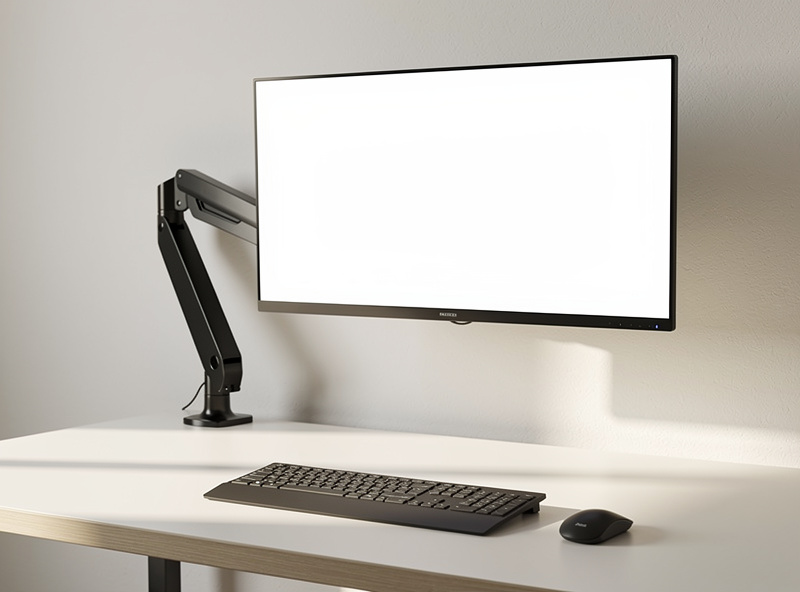
This is where geometry meets gear. The fix is almost always a monitor arm — clamp it to the back edge, and the screen floats past the desk’s rear, buying you 10 to 20 cm of distance you couldn’t get otherwise. It also clears the desk surface underneath, which matters more than people expect on a shallow desk. If a big screen feels too close and you’ve run out of desk, the answer isn’t a smaller screen; it’s getting the screen off the desk’s footprint.
Text scaling changes everything
Distance and text size are two dials on the same machine. If a screen feels too far to read comfortably, the lazy fix is to drag it closer — but that re-introduces the neck-sweep problem on a big panel. The better fix is usually to scale the text up (or bump the display scaling in your OS) and leave the panel at the comfortable distance. On a 32-inch 4K monitor in particular, running it at 100% scaling puts the text microscopic at any sane distance; bump scaling to 125–150% and suddenly the comfortable distance and readable text agree with each other.
So the workflow is: set the distance by screen size first, then adjust text scaling until it reads cleanly at that distance — not the other way around. Moving the screen to fix text is treating the symptom; scaling the text is treating the cause.
Curved vs. flat at these distances
On the wide panels, curvature earns its keep. A curved 34-inch or 38-inch ultrawide brings the far edges slightly toward you, so the whole surface sits at a more uniform distance from your eyes — which means you can run it a touch closer than a flat panel of the same width without the edges feeling like they’re peeling away. A flat ultrawide wants a bit more distance to keep the edge angle reasonable. It’s a small effect on a 34, a real one on a 49-inch super-ultrawide. I wouldn’t buy curved for the distance benefit alone, but if you have a wide flat panel that feels edge-distorted, pushing it back is the free remedy.
How to measure it without guessing
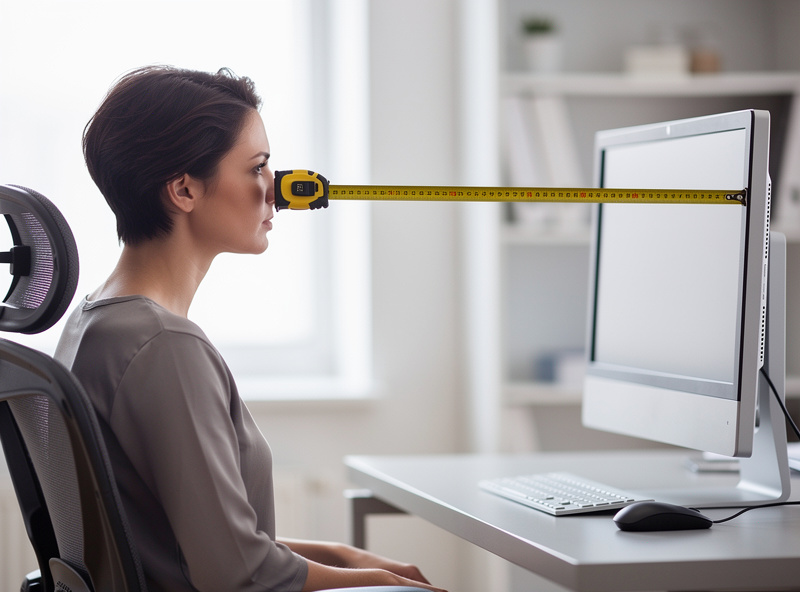
Don’t eyeball this. Sit the way you actually work, hold a tape from the bridge of your nose to the screen surface, and read the number. Compare it to the table, adjust, and — you know what’s coming — log it. A small laser measure makes this a one-person job and gives repeatable readings if you’re tuning more than one workstation. And if the right distance for your screen size simply doesn’t fit on your desk, a gas-spring monitor arm is the piece that buys back the depth — pick one rated comfortably above your panel’s weight, which I cover separately.
Disclosure: As an Amazon Associate I earn from qualifying purchases. The links here are category search links to gear I use in my own setup; they cost you nothing extra. This is comfort-and-geometry guidance, not medical advice.
The verdict
Start at roughly an arm’s length, then push the screen farther back the bigger it gets — a 27-inch wants more room than your old 24-inch habit, and a big ultrawide wants real desk depth or an arm to get there. Fix readability with text scaling, not by dragging the panel closer. Measure it once, log it, and stop guessing. It’s free, it takes five seconds, and it’s the difference between a screen you read and a screen you fight.
Related reading
- The Correct Desk Height: Full Setup Guide — where screen distance fits in the whole geometry.
- Desk Height Calculator vs. the Elbow Rule — get the surface height right first.
- Ergonomics Glossary — monitor distance, eye line, VESA, defined.
- Tools I Actually Use — the tape, laser and setup log.
Frequently Asked Questions
How far should a monitor be from your eyes?
As a starting point, about an arm’s length away, so your fingertips just brush the screen when you reach out, which is roughly 50 to 70 cm for a typical 24 to 27 inch monitor. Bigger screens want to sit farther back, so adjust from that baseline by screen size and confirm the distance with a tape measure.
How far should a 27 inch monitor be?
A 27 inch monitor is comfortable for most people around 60 to 75 cm from the eyes for general desk work, which is a little farther than the old 24 inch habit suggests. The most common mistake is sitting a 27 inch too close. Measure nose-to-screen and adjust text scaling rather than dragging the panel nearer.
How far should a 32 inch or ultrawide monitor be?
A 32 inch panel or a 34 inch ultrawide is generally comfortable around 75 to 90 cm, and larger 38 to 42 inch ultrawides often want 90 to 110 cm. These distances need real desk depth, which is why large panels frequently end up on a monitor arm pushed back past the desk’s rear edge.
Why does screen size change the ideal distance?
A larger screen fills more of your field of view at a given distance, so at a fixed distance you end up sweeping your eyes and neck across a big panel to read the edges. Moving it farther back lets the whole screen fall into a comfortable cone you can take in without turning your head.
Should I move the monitor closer if the text is too small?
Usually no. Dragging a large panel closer re-introduces the neck-sweep problem. Instead, leave the screen at the comfortable distance for its size and increase the text or display scaling until it reads cleanly. Set distance first, then fix readability with scaling.
Does a curved monitor change the right distance?
A curved ultrawide brings the far edges slightly toward you, so the whole surface sits at a more uniform distance and you can run it a touch closer than a flat panel of the same width. The effect is small on a 34 inch and more noticeable on very wide panels. It is a comfort refinement, not a reason to buy curved on its own.
