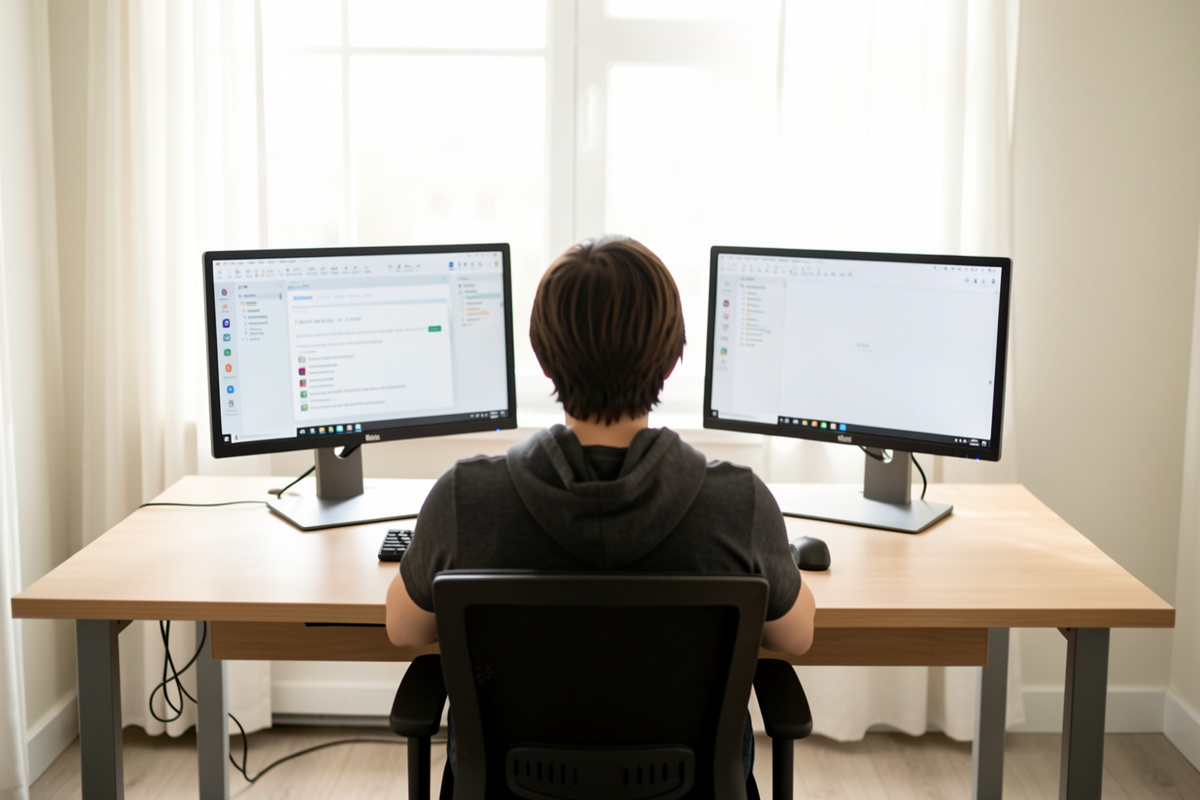

For a dual monitor setup, match the top edge of both screens at or just below seated eye level, then toe each panel inward 10 to 15 degrees so it faces you instead of the wall. In my setup log that puts both 27-inch tops about 8–10 cm above the desk and closes the center seam to nearly nothing. Height controls your neck; angle controls your head turn — and two screens punish small errors in both more than one screen ever does.
I have re-measured my own two-screen geometry more times than I can count, usually after noticing a late-afternoon stiffness that traced straight back to a panel sitting a couple of centimeters off. This is the height-and-angle method I settled on, written as numbers you can copy and then tune. It is a comfort-and-geometry method, not a medical one — measure to your own body, not to a chart that claims to know it.
Get Both Tops to the Same Eye Line
Set the top edge of each screen at or just below seated eye level so your gaze falls a few degrees down into the panel. The single most useful fact about dual setups is that the height has to match across both screens. A 3–4 cm mismatch is invisible in a photo but your neck quietly settles toward whichever screen is lower, and over a workday that becomes the thing you feel. With two identical monitors on the same kind of mount this is automatic. The mismatch creeps in when one panel is bigger, or when one sits on its stock stand and the other on an arm.
To measure it, sit the way you actually sit — back to the chair, feet down — close your eyes, face forward, open them, and note where your gaze lands on each screen. It should land in the upper third of both. If one panel forces your chin up or down to center it, that one is off. A pair of monitor arms is the clean fix because it decouples height from whatever base each monitor shipped with. The broader eye-line logic, including the single-screen version, is in the monitor height and eye line guide, and the full pillar is the dual monitor setup guide.
The Toe-In Angle: Build a Shallow Arc
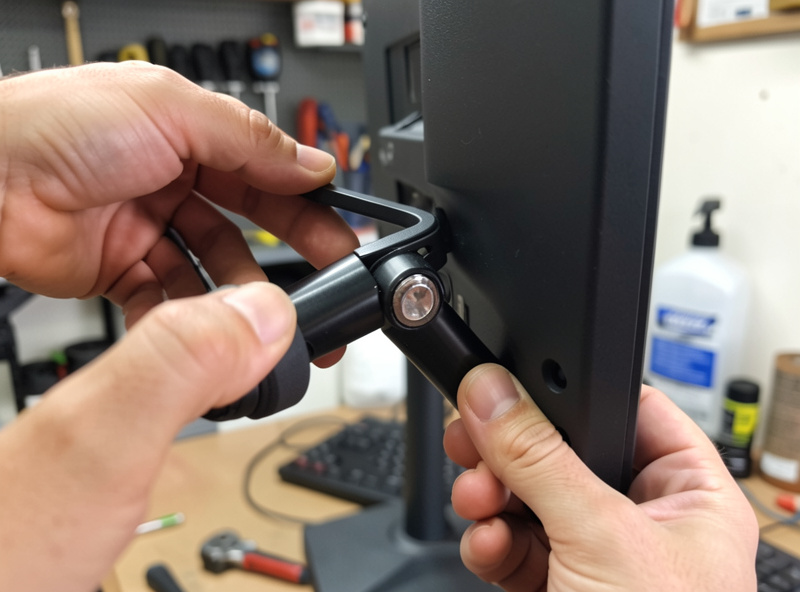
Two screens set flat and parallel form a wall, and a wall makes your eyes travel sideways to its far corners while your head stays put — the opposite of relaxed. Curve the wall: toe each panel inward roughly 10 to 15 degrees so the inner edges come slightly forward and the outer edges swing back. Now each screen faces you, and reaching the far one is a small head turn rather than an eye stretch. The check is to sit centered, look at the seam, and confirm both panels feel aimed at your face.
How much toe-in depends on how wide your panels are and how far back they sit. Bigger screens and closer seating want a touch more angle; if the panels are far back the arc flattens. I log the angle by eye, but you can be precise: a protractor app on your phone laid against the panel back tells you the degrees. The angle interacts with which screen is primary — an even split curves both equally, a primary-plus-reference layout angles the secondary in harder — and that split gets its own treatment in the primary vs secondary monitor positioning guide.
Tilt: A Small Backward Lean
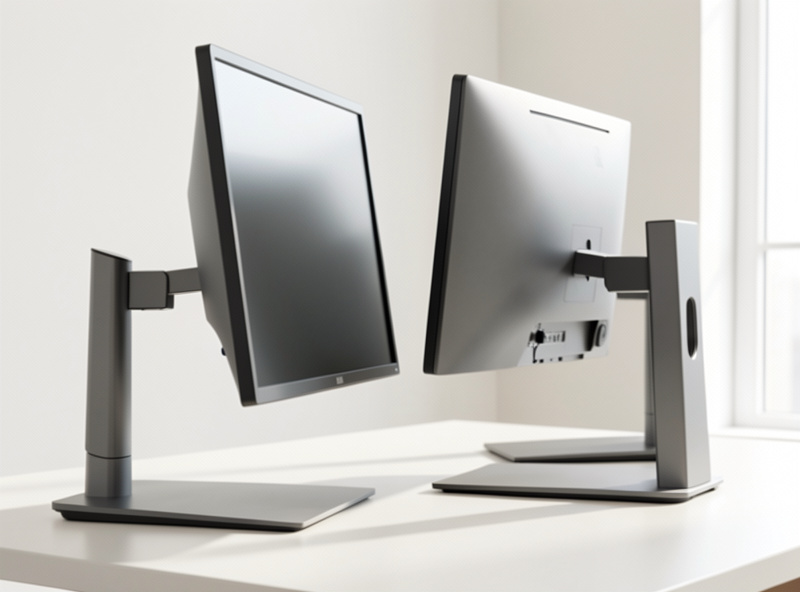
Tilt is the third adjustment and the one people forget. Each panel should lean back slightly — a few degrees off vertical — so its surface sits perpendicular to your line of sight rather than to the desk. Because your gaze drops into the screen, a dead-vertical panel actually points its top edge slightly away from you. A small backward tilt brings the whole surface square to your eyes and, as a bonus, tips overhead light reflections up and out of your view instead of into it.
On a dual setup, match the tilt across both panels for the same reason you match height — asymmetry reads as low-grade wrongness even when you cannot name it. Most arms and decent stock stands give you 15–20 degrees of tilt range, which is more than enough. If glare is fighting you, tilt is your first free lever before you reach for anything you can buy.
The Vertical-Screen Height Exception
Rotating the secondary to portrait breaks the matched-height rule on purpose. A 27-inch panel turned vertical is roughly 60 cm tall, so if you keep its top at the same eye line as its landscape neighbor, the bottom third drops below comfortable reach and you end up scanning up and down a tower. The fix is to drop the vertical panel lower on its arm so the whole height splits more evenly around your eye line — top a little higher than ideal, bottom not buried.
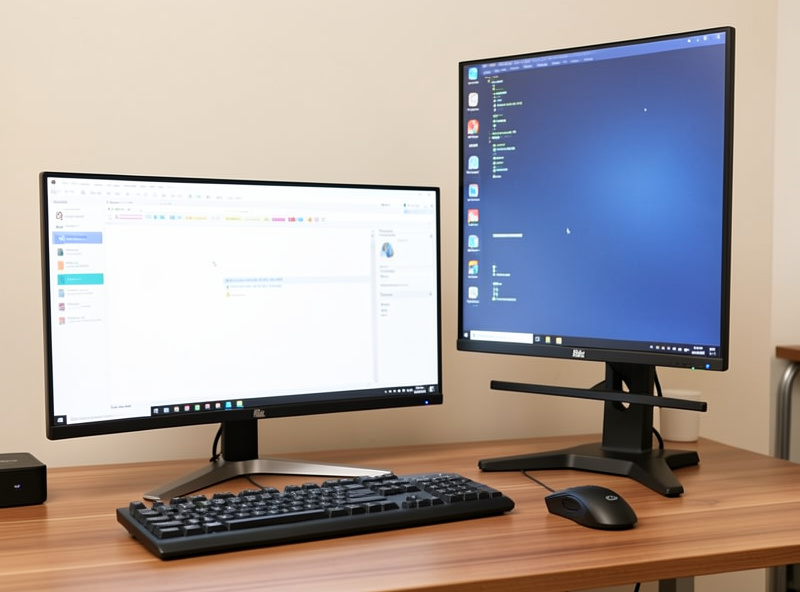
This is exactly why a height-adjustable arm earns its money on a dual setup that mixes orientations: you cannot hit it with two stock stands. Whether portrait is even worth it for your work is a separate question, and I worked through it in the horizontal vs vertical monitor orientation guide. If you do go vertical, plan the height drop before you mount, not after.
When the Two Panels Are Different Sizes
Mismatched panel sizes are the hardest dual geometry to get right, and a laptop-plus-external is the most common version of it. The trap is matching the bottom edges, which lines the screens up on the desk but throws the tops — and therefore the eye lines — out of sync. Always match the top edges and the working eye line, and let the bottoms fall where they fall. A smaller secondary will sit higher off the desk than feels natural; that is correct.
A laptop is the extreme case because its screen is both small and, on the desk surface, far too low. Lift it on a riser or a laptop arm until its top reaches the external’s eye line, and run an external keyboard so your hands are not stuck up at screen height. The docking and lift method is in the laptop ergonomics and docking guide. For two desktop panels of different sizes, independent single arms beat a shared crossbar because you can set each height separately.
| Adjustment | Target | Dual-setup rule | Typical range available |
|---|---|---|---|
| Top-edge height | At or just below eye level | Match both tops, not bottoms | Arm: 13–15 cm travel |
| Toe-in angle | 10–15° inward each | Symmetric if split 50/50 | Full swivel on most arms |
| Tilt | A few degrees back | Match across both panels | 15–20° on most mounts |
| Vertical panel | Center it on eye line | Drop it lower than landscape | Needs height-adjustable arm |
A Repeatable Way to Dial It In
Work in order so each setting holds the next steady. Height first: match both tops to your eye line. Angle second: toe each panel in until it faces you. Tilt third: a small backward lean, matched. Then sit and work for a few days before you touch anything. The mistake is chasing comfort in one ten-minute session — fatigue shows up over hours, not minutes, so a real verdict needs a real afternoon. Write the numbers down. When something feels off next week, you change one variable against a known baseline instead of starting over.
If the desk under the screens is the wrong height, none of this lands, because your shoulders and elbows set the whole chain — fix that first with the desk height guide or, for standing, the standing desk height guide. And the hardware that lets you actually hit these numbers is the arm: the selection math is in the monitor arm guide and the two-screen options in the dual monitor arm comparison.
Frequently Asked Questions
What height should dual monitors be set to?
Set the top edge of both screens at or just below your seated eye level, so your gaze drops a few degrees into the panel. For a 27-inch screen on an arm that lands roughly 8 to 10 cm above the desk. The key rule is matching both tops, not the bottoms.
What angle should two monitors be set at?
Toe each panel inward about 10 to 15 degrees from flat so it faces you rather than the wall, forming a shallow arc. Sit centered, look at the seam between them, and each screen should feel aimed at your face. Wider panels and closer seating want slightly more angle.
Should I match the bottom or the top of two different-sized monitors?
Match the top edges and your working eye line, not the bottoms. Lining up the bottoms looks tidy but throws the eye lines out of sync, and your neck settles toward the lower screen. The smaller panel will sit higher off the desk, which is correct.
How high should a vertical second monitor be?
Lower than its landscape neighbor. A 27-inch panel turned portrait is about 60 cm tall, so keeping its top at the same eye line buries the bottom third. Drop it on the arm so the panel splits more evenly around your eye line.
Do monitors need to be tilted as well as angled?
Yes, a small backward tilt of a few degrees squares the screen surface to your downward gaze and tips overhead reflections out of view. Match the tilt across both panels. Most arms and stands offer 15 to 20 degrees of range, which is plenty.
