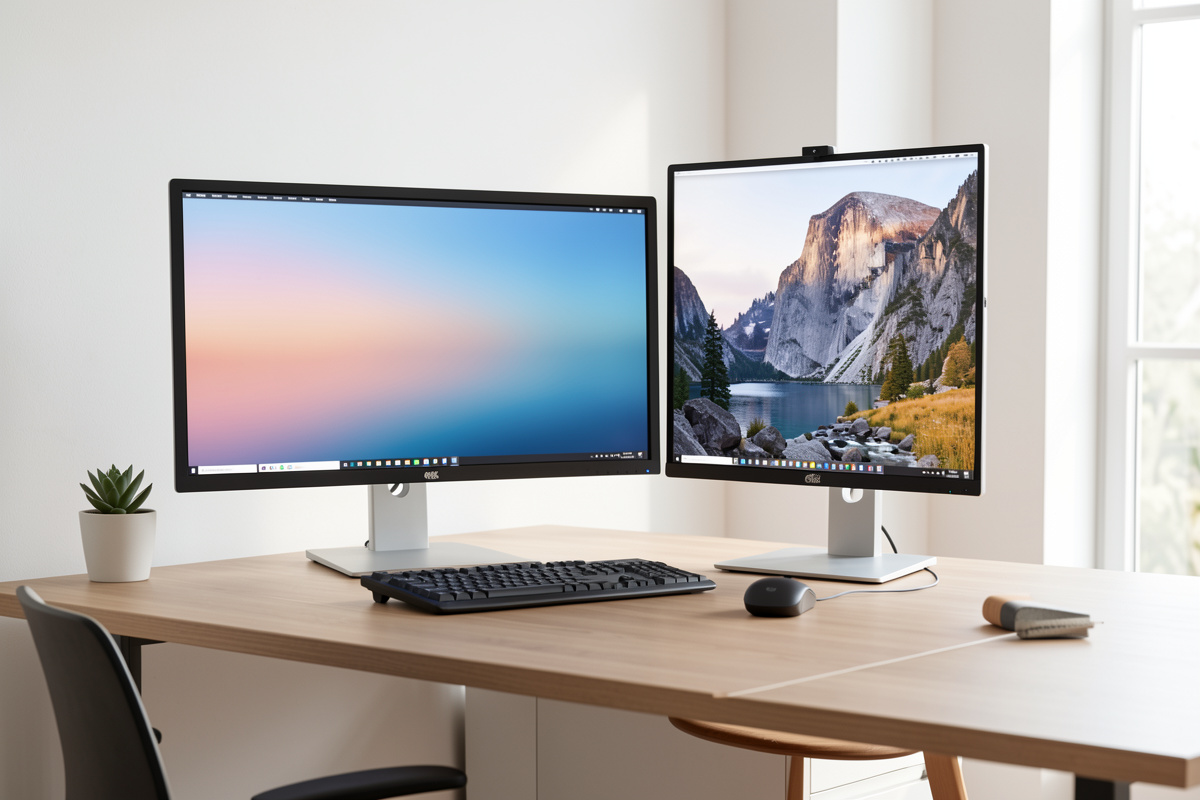

Vertical (portrait) orientation wins for tall, narrow content — long documents, code, chat and reference panes you scroll rather than scan. Horizontal (landscape) wins for everything wide: video, spreadsheets, timelines, and side-by-side windows. The most productive dual setup for many people is one of each: a landscape primary you work on and a portrait secondary that turns a 27-inch panel’s 60 cm of width into 60 cm of height for the long stuff. Orientation is a task question, not a fashion one, and the wrong answer just makes you scroll or crane more than you need to.
I have run my second screen both ways for months at a time, logged how it actually felt, and rotated it back when the work changed. This is the honest case for each orientation, including the height cost portrait quietly adds. It is framed around how content fits and how comfortably your gaze travels — comfort and workflow, not any health outcome.
What Vertical Orientation Is Actually Good For
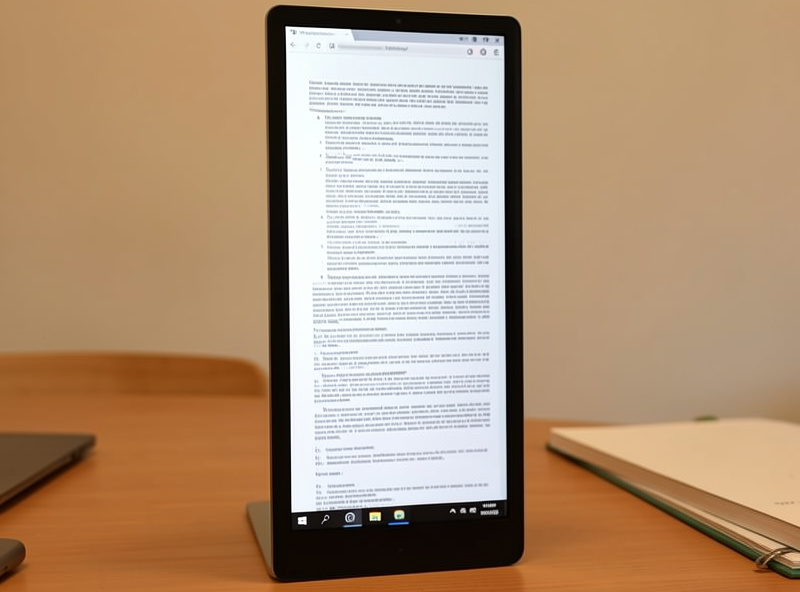
Turn a panel portrait and you trade width for height — roughly, a 27-inch 16:9 screen goes from about 60 cm wide to about 60 cm tall. That extra vertical run is built for content that is naturally tall: a full page of a document with almost no scrolling, a long code file where you see dozens more lines at once, a chat or messaging column, a web article, or reference material parked beside your main work. If your day involves reading or writing down a long column, portrait shows you more of it in one glance and cuts the scroll-wheel mileage.
The productivity gain is real but specific. It comes entirely from seeing more lines without scrolling — nothing more mystical than that. If the thing you stare at is not tall and narrow, portrait gives you nothing and costs you width. That is why portrait almost always belongs on the secondary screen, where the reference and the long documents live, while the main work stays landscape.
What Horizontal Orientation Keeps Winning
Landscape is the default for a reason: most software, most media, and most multi-window work assume a wide canvas. Video is 16:9 and letterboxes badly in portrait. Spreadsheets run wide — you want columns, not rows, on screen. Timelines in video and audio editors, wide dashboards, and any workflow where you place two windows side by side all want horizontal space. Gaming is landscape, full stop.
Landscape also keeps your eyes moving the way they move most comfortably — side to side across a wide field rather than up and down a tall one. Scanning up a tall portrait panel means more vertical gaze travel, and the top of a big portrait screen can climb past a relaxed eye line. That height issue is the main practical catch with vertical, and it is worth understanding before you commit a panel to it.
The Height Cost of Going Vertical
This is the part product photos never show. A 27-inch panel turned portrait is roughly 60 cm tall. If you mount its top at the same eye line you would use for landscape, the bottom third drops well below comfortable view and you spend the day glancing down to a buried corner. The fix is to drop the whole panel lower on its arm so it straddles your eye line more evenly — top a bit higher than ideal, bottom not lost. You cannot do that well with a stock stand; it needs a height-adjustable arm.
So portrait has a hardware prerequisite: an arm or mount that both rotates 90 degrees and drops low enough. Most gas-spring arms do both, but check the rotation and the height range before you plan around it. The full height-management method for a mixed setup is in the dual monitor height and angle guide, and the arm side is in the dual monitor arm comparison.
| Work type | Better orientation | Why |
|---|---|---|
| Long documents, writing | Vertical | Whole page visible, little scrolling |
| Code editing | Vertical | More lines per glance |
| Chat, reference, feeds | Vertical | Tall narrow column suits the format |
| Spreadsheets | Horizontal | Columns need width |
| Video, editing timelines | Horizontal | 16:9 media and wide tracks |
| Side-by-side windows | Horizontal | Two panes fit across the width |
The Mixed Setup: One of Each
For most people who do varied desk work, the strongest dual layout is a landscape primary squared in front and a portrait secondary angled in from the side. You get a wide main canvas for the active task and a tall reference column for the documents, chat, or code you keep glancing at. It is the layout I keep coming back to, because it matches the actual shape of the two different jobs the two screens are doing.
If you go this route, set the primary’s geometry first as your anchor, then rotate and drop the secondary to suit. Which screen should be primary, and where exactly the secondary sits, is its own decision covered in the primary vs secondary monitor positioning guide. And whatever orientation you choose, the panel still needs to sit at the right distance — covered in the eye distance from dual monitors guide.
How to Rotate a Monitor
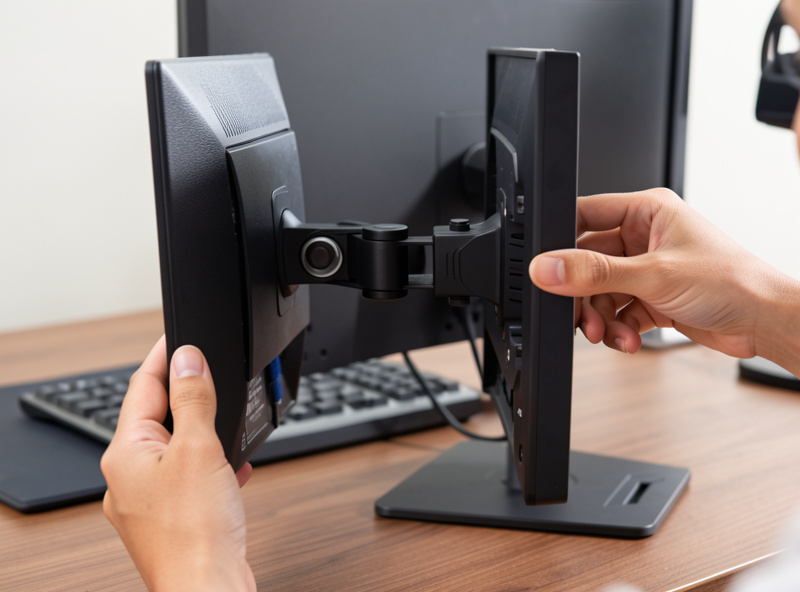
Rotating is two steps: the hardware and the software. On the hardware side, the panel has to physically pivot — most monitor arms rotate 90 degrees, and many stock stands with a pivot function do too, though cheaper stands often do not. On the software side, you tell the operating system the display is rotated: Windows display settings and macOS display arrangement both have an orientation dropdown — set it to portrait and the image turns with the panel. Do the software rotation after the hardware so you are not reading sideways while you fiddle with the arm.
One practical note: a single ultrawide cannot be split into a landscape-and-portrait combo, which is one of the things two separate panels still do that one wide screen cannot. If you are weighing that trade more broadly, the ultrawide vs dual monitor comparison takes it apart, and the whole topic sits under the dual monitor setup guide.
Frequently Asked Questions
Is a vertical monitor better for productivity?
Only for tall, narrow content like long documents, code, and chat or reference columns, where it shows more lines without scrolling. For spreadsheets, video, and side-by-side windows, horizontal is better. The most productive dual setup is often one landscape primary plus one portrait secondary.
Should my second monitor be vertical or horizontal?
Make it vertical if it mostly holds documents, code, chat, or reference material you scroll down. Keep it horizontal if it holds video, spreadsheets, or a second wide window. The choice follows the content on that screen, not a rule that applies to everyone.
What is the downside of a vertical monitor?
Height. A 27-inch panel turned portrait is about 60 cm tall, so mounting its top at a normal eye line buries the bottom third. You need a height-adjustable arm to drop it lower so the panel straddles your eye line evenly. A stock stand usually cannot.
Do I need a special monitor to use it vertically?
No, the panel just needs a mount that rotates 90 degrees, which most monitor arms and pivot-capable stands provide. Then set the operating system display orientation to portrait. Cheaper fixed stands often do not pivot, in which case an arm is the route.
Can an ultrawide replace a vertical second monitor?
No. An ultrawide is a single wide landscape canvas and cannot be split into a separate portrait panel. Running one screen landscape and one portrait is something two separate monitors do that a single ultrawide cannot, which is a point in favor of dual for mixed work.
