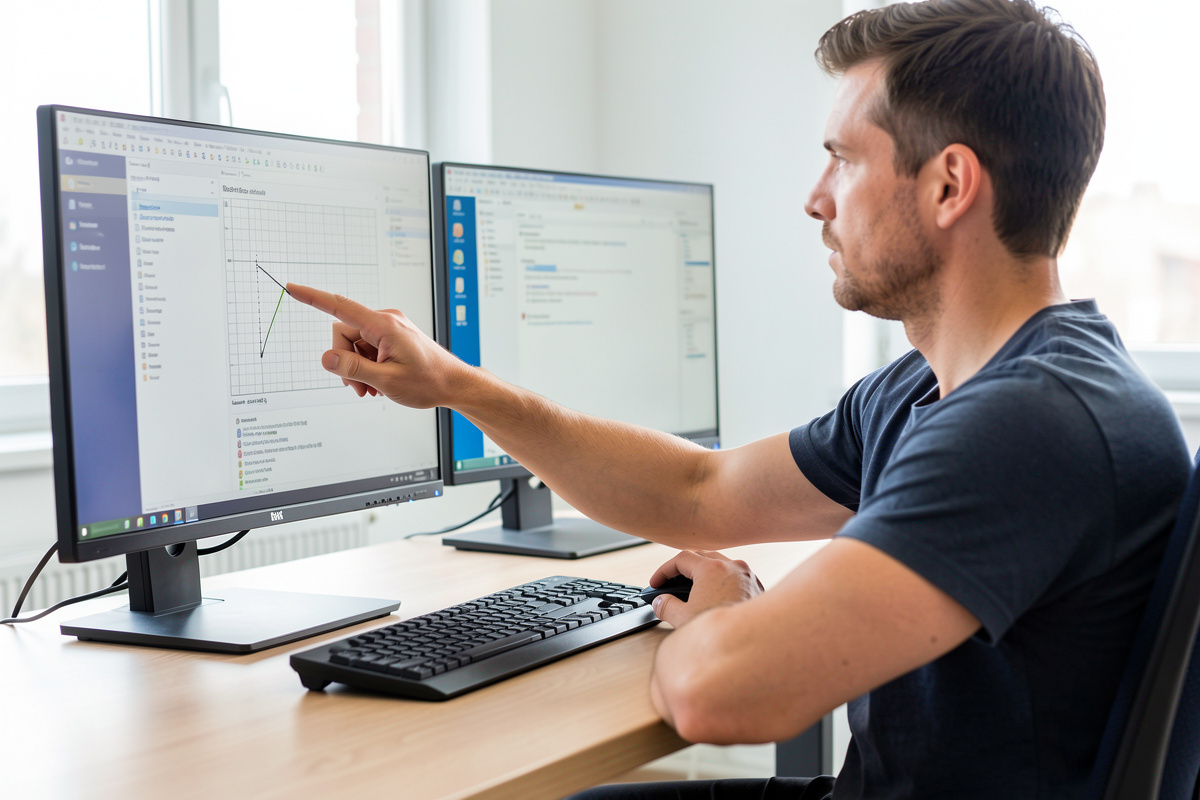

Sit about an arm’s length from your monitors — roughly 50 to 70 cm for 24 to 27-inch panels, and farther as the screen grows. On a dual setup the rule gets one extra clause: keep both panels the same distance from your eyes, measured to each panel’s center. The most common dual-monitor distance mistake is pulling the primary in close while the secondary sits farther back, which forces your eyes to re-focus and re-converge every time you glance across.
I keep the panel distances in my setup log within about 10 cm of each other, because the day I let them drift apart is the day I notice it by mid-afternoon. This guide covers the distance numbers by screen size, the convergence problem unique to two screens, and how angling the panels quietly changes the distance you actually get. It is framed around viewing comfort and focus, not any medical outcome.
The Arm’s-Length Rule, and Why Bigger Means Farther
Start with the simplest test: sit back the way you actually work and reach toward the screen — your fingertips should roughly brush it. That arm’s-length default lands most people between 50 and 70 cm for common panels. The counterintuitive part is that bigger screens want more distance, not less. You take in a large panel by letting your eyes travel across it, and a big screen jammed close forces constant refocusing at the far edges and corners while the center fills too much of your field of view.
So a 24-inch panel is comfortable a little closer, while a 32-inch wants to sit noticeably farther back to keep the whole surface in an easy sweep. Push the panel back until you can take in its full width without turning your head much, then check that the text is still readable — if it is not, the answer is to scale the text up, not to drag the screen closer. The per-size breakdown for a single panel is in the monitor distance by screen size guide.
The Convergence Problem With Two Screens
Here is the part that only applies to dual setups. Your eyes do two things to look at a screen: they focus (the lens adjusts) and they converge (both eyes angle inward to the same point). Both are set by distance. If your two panels sit at different distances, every glance from one to the other makes your eyes re-focus and re-converge — a small adjustment, but one you repeat hundreds of times a day, and it is exactly the kind of low-grade effort that adds up to feeling worn down without an obvious cause.
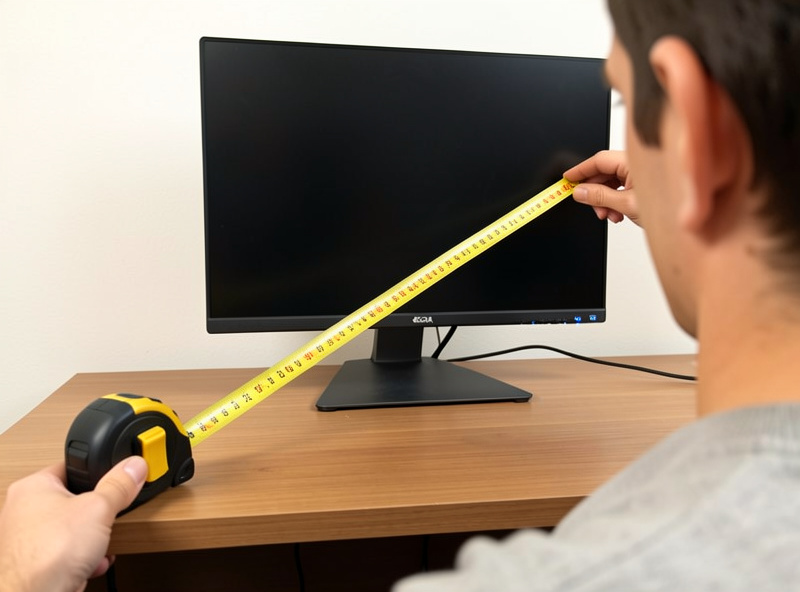
The fix is simple to say and easy to skip: set both panels to the same distance, measured to the center of each screen. Sit centered, hold a tape measure to your eyes, and check the distance to each panel’s middle — bring them within about 10 cm of each other. This is more important than getting the absolute number perfect. Two screens at a slightly-wrong but matched distance beat two screens at the ideal distance for one and a different distance for the other. The whole geometry picture is in the dual monitor setup guide.
How Angling Changes the Distance You Actually Get
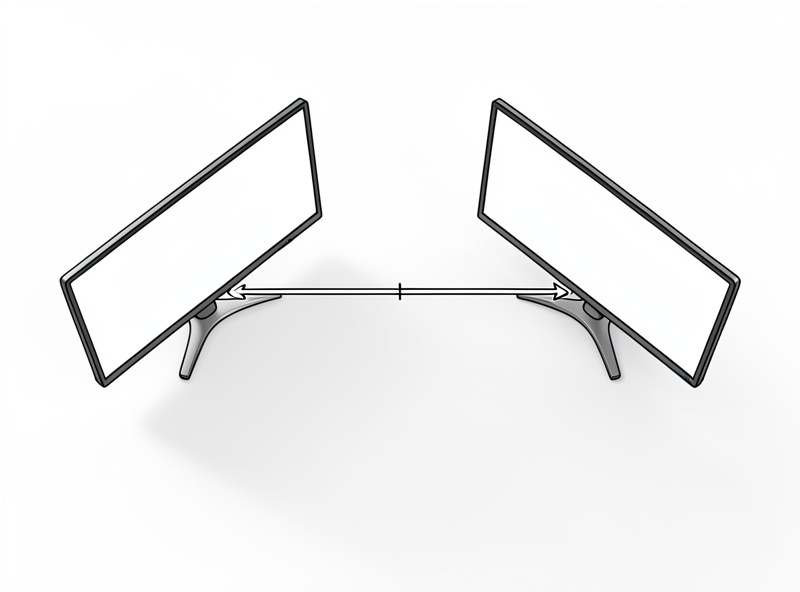
Toe-in angle and distance are linked, and this trips people up. When you angle the secondary panel inward, its inner edge comes toward you and its outer edge swings away, so the panel’s average distance shifts depending on where you look on it. A well-angled secondary that faces you keeps the working distance more consistent than a flat one, because your head rotates to face it and the whole panel presents at a more even throw.
The trap is a secondary angled so aggressively, or pushed so far to the side, that its center ends up much farther than the primary. Then you get the convergence jump every time you look over. The way to check is to do the measuring after you have set the angle, not before — set height, set angle, then measure distance to each center and adjust depth until they match. The angle method itself is in the dual monitor height and angle guide.
| Screen size | Rough distance range | Dual-setup note |
|---|---|---|
| 24 inch | 50–60 cm | Easiest to match, panels sit close |
| 27 inch | 60–70 cm | Most common dual pairing |
| 32 inch | 70–90 cm | Needs more desk depth per panel |
| Mixed sizes | Match to centers | Set both centers to same distance |
The Symptoms of Getting Distance Wrong
Distance errors show up as fatigue, not as a sharp problem, which is why they go unfixed for so long. Too close, and you feel the constant micro-refocusing and a screen that crowds your field of view; you may notice yourself leaning back to escape it. Too far, and you lean in toward the screen — which then wrecks your back-to-the-chair posture and undoes your desk geometry. On a dual setup, a mismatch between the two panels shows up as a vague reluctance to use the second screen, or as catching yourself rotating the whole chair to face it squarely.
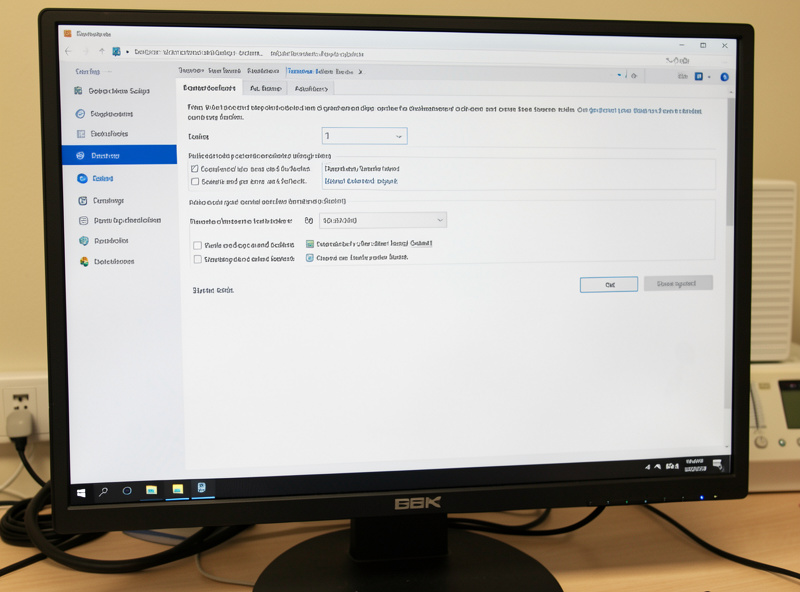
If you find yourself leaning in, the honest first move is to make the text bigger, not to pull the screen closer. Operating system display scaling exists exactly for this — bump it up and you keep the comfortable distance while the text grows. Pulling the panel in to read it is solving a font-size problem with a geometry sacrifice, and the geometry is the thing your body actually feels over a full day.
A Quick Way to Set Dual-Monitor Distance
Work in order. Set both panels to roughly an arm’s length and lock the arm depth. Set the height and angle. Then sit centered, measure from your eyes to the center of each panel, and nudge the depth until the two numbers are within about 10 cm. Read some real text on each screen — if you are squinting, raise the display scaling rather than moving the panel. Write the distances in your setup log so that when something feels off next month, you have a baseline to compare against instead of guessing. Distance is one of the three free fixes, alongside height and angle, that beat most purchases — the input side that completes the picture is in the keyboard and mouse positioning guide, and which screen should anchor the layout is in the primary vs secondary monitor positioning guide.
Frequently Asked Questions
How far should I sit from dual monitors?
About an arm’s length, roughly 50 to 70 cm for 24 to 27-inch panels and farther for larger ones. On a dual setup, also keep both panels the same distance from your eyes, measured to each screen’s center, so glancing between them does not force constant refocusing.
Should both monitors be the same distance away?
Yes. If the two panels sit at different distances, your eyes re-focus and re-converge every time you look across, which is small but repeated hundreds of times a day. Measure to each panel’s center and bring them within about 10 cm of each other.
Why do my eyes feel tired with two monitors?
A common cause is the two panels sitting at different distances, so each glance across forces a focus and convergence adjustment. Matching both panel distances to within about 10 cm, and keeping text large enough that you are not leaning in, removes that repeated effort.
Should bigger monitors be further away?
Yes. You take in a large screen by moving your eyes across it, so a big panel placed too close forces refocusing at the edges and fills too much of your view. A 32-inch panel wants noticeably more distance than a 24-inch one, which also needs more desk depth.
My screen feels too close but text is hard to read further back. What do I do?
Increase the display scaling in your operating system so the text grows, then keep the panel at a comfortable arm’s-length distance. Pulling the screen closer to read it sacrifices the geometry your body feels all day to solve a font-size problem that scaling fixes directly.
