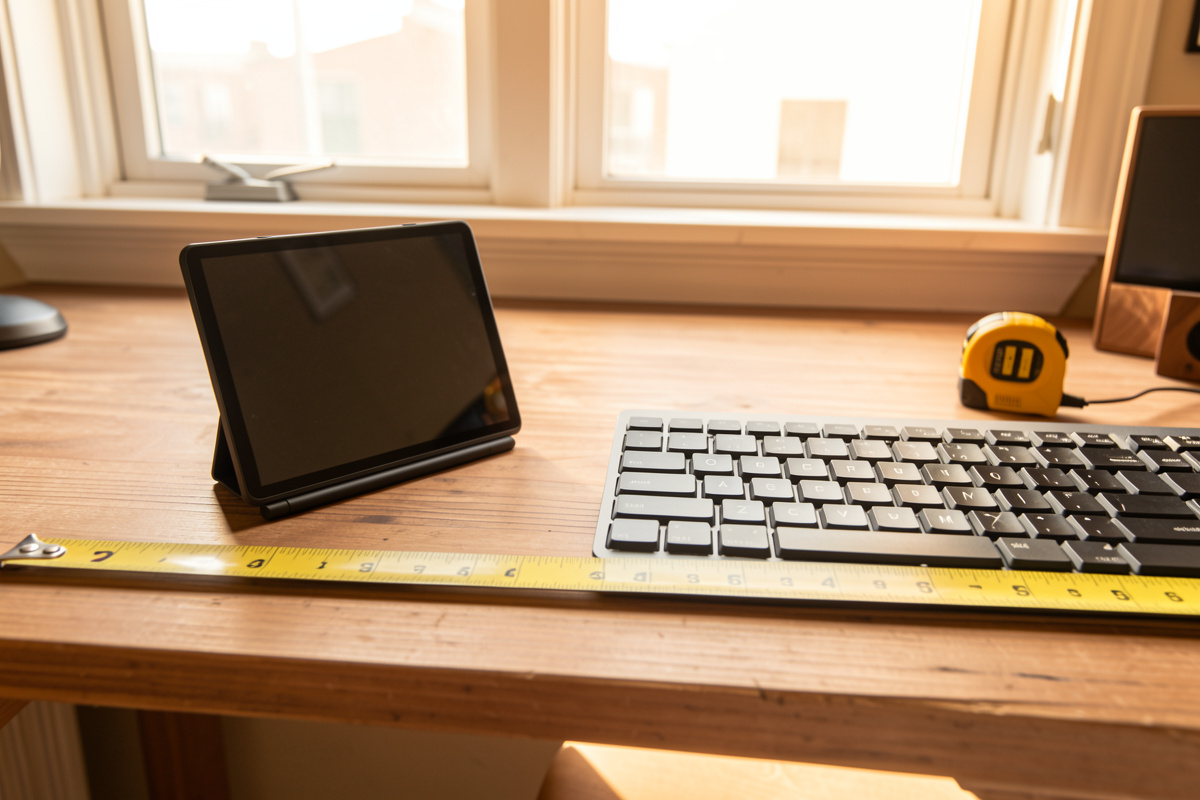

Bottom line up front: A pen tablet can take real load off a clicking, gripping mouse hand by swapping a claw grip for an open pen grip and absolute pointing. In my setup log it works best as a rotation tool you switch to for part of the day, not a wholesale mouse replacement. The learning curve runs a few days, not minutes, and the parallax cost is real.
I have spent more time measuring input devices than I would admit at a dinner party. Two standing-desk frames, three chairs, gas-spring arms, a tape and laser measure that live on the desk, and a log where I write down what each change actually did. A few months ago I added a small drawing tablet to that log, not to draw, but to see whether it could share the everyday pointing work my mouse hand has been doing for years. This article is what I measured and what I would tell a friend who asked the same question.
How a Pen Tablet Differs From a Mouse
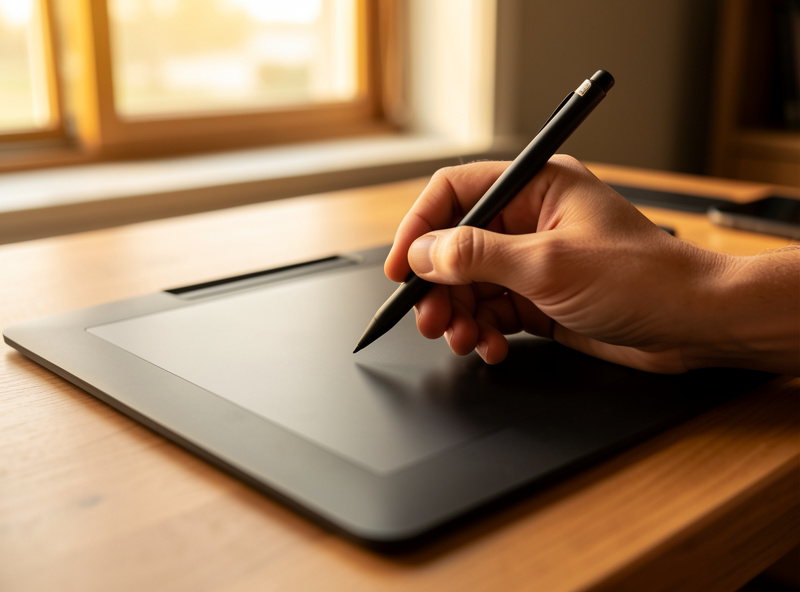
A pen tablet replaces a hand-shaped grip and clicking motion with a held-pen grip and a touch-down to click. The biggest difference is pointing: a mouse is relative, a tablet is absolute. That single change reorganises how your hand, wrist and shoulder move across a working session.
With a mouse you push, lift, reposition, and push again. Your hand rests in a fixed shape — palm, claw, or fingertip — and the cursor moves relative to that motion. A pen tablet maps the cursor to the active area directly. The top-left corner of the pad is the top-left corner of the screen, always. Touch the pen down there and the cursor is there. That is absolute pointing, and it means no lift-and-reposition: you never run out of pad and have to pick the device up.
The grip changes too. Holding a pen is a posture most of us learned at five years old, and it tends to be looser than a mouse grip. You are not pressing two fingers down to hold a click-ready position; you tap or press to click. In my setup log the headline difference came down to three things:
- Grip shape: open tripod pen hold versus claw or palm grip on the mouse.
- Pointing model: absolute mapping across the active area versus relative push-and-lift.
- Click action: a pen tap or barrel-button press versus a finger-tendon click held over a button.
None of that is automatically better. It is different, and different is exactly what you want when one hand has been doing the same motion all day.
The Genuine Comfort Case
The real case for a pen tablet is load distribution: you can alternate the mouse hand, use a lighter grip, and pull pointing closer to your centreline. In my setup log, the measurable win was simply doing the same task with a different posture for part of the day rather than the same one all day.
Here is what actually changed for me, measured the boring way — by paying attention across a few weeks of switching hands:
- Hand rotation. A pen tablet is one of the few pointing devices that is genuinely usable in either hand after a short adjustment. I keep mine on the left, mouse on the right, and split the session. Sharing input load across two hands instead of loading one is the single biggest reason I kept the tablet.
- Looser grip. I measured the pinch force the only way an amateur can — by noticing how tired my hand felt — and the open pen hold consistently felt lighter than my mouse claw after long stretches. Less sustained grip means less sustained shoulder load feeding down the arm.
- Centreline pointing. I can place a small tablet directly in front of me, between keyboard and body, instead of out to the side where a mouse lives. Pulling the pointing device toward my centreline shortens the reach and keeps the shoulder more neutral. I measured the travel from home-row to mouse versus home-row to centred tablet and the tablet reach was shorter.
I want to be careful here. This is a comfort-and-geometry argument, not a health claim. A pen tablet did not “fix” anything for me, and I will not pretend it cures problems. What it did was give me a second posture to rotate into, which is a sensible idea on its own terms. The U.S. OSHA computer workstation guidance frames good setup around variation and neutral reach rather than any single magic device, and that matches what I saw — OSHA’s workstation eTool is worth reading as background research, cited here as research, not as a result I am promising you.
The Friction Nobody Mentions in the Reviews
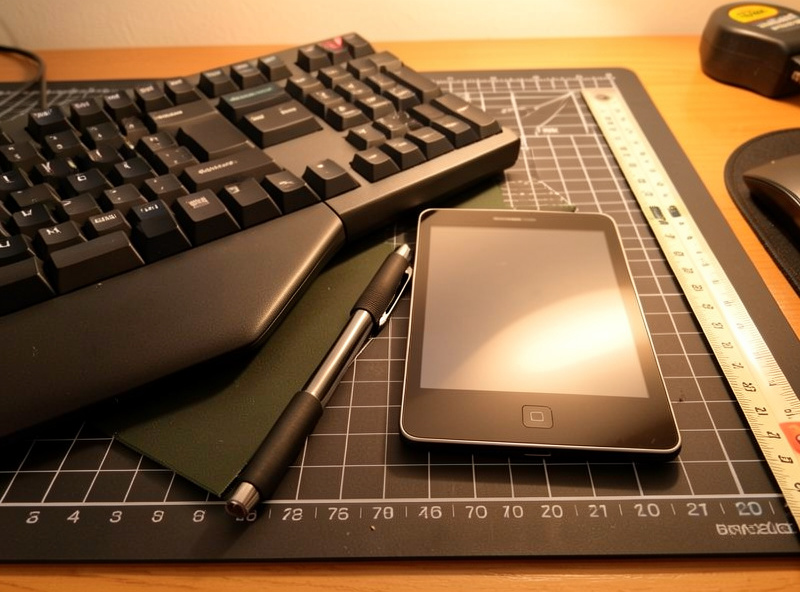
Absolute pointing and a pen grip both carry a real cost: a learning curve, fiddly precise clicks, awkward scrolling, and parallax between where you look and where the cursor lands. These are not dealbreakers, but anyone telling you a tablet is a frictionless mouse swap has not used one for a full workday.
The friction I logged, in rough order of annoyance:
- The learning curve is days, not minutes. Absolute mapping rewires a reflex you have built over decades. For the first day or two my cursor overshot small targets constantly. It settled, but budget for it — do not test a tablet on a deadline.
- Precise UI clicks are harder. Hitting a tiny close button or dragging a 1-pixel slider edge is fussier with a pen tap than with a mouse you can rest and micro-adjust. The pen has no rest state hovering over a button; you commit to a position.
- Scrolling is a compromise. Most tablets scroll via the pen and an on-pad gesture or buttons, and none of it felt as natural to me as a mouse wheel. For document-heavy days I missed the wheel enough to switch back.
- Gaming and CAD push back. Anything built around relative aiming or fast repeated drags — shooters, some 3D CAD navigation — fights absolute pointing. The tablet is fine for sketch-style CAD input but I kept the mouse for camera control.
- Parallax and mapping. Your hand is on the desk while your eyes are on the screen, so there is a small disconnect between where you feel the pen and where the cursor appears. On a single monitor it disappears with practice. Across a wide or multi-monitor setup, the screen-to-tablet mapping gets stretched and the active area starts feeling cramped.
The honest summary of friction: a pen tablet is excellent at the broad, sweeping cursor work and noticeably worse at the precise, fiddly, fast-repeat work. That maps almost perfectly onto why it is a rotation tool and not a replacement.
Active-Area Sizing Versus Desk Space
The active area is the magic number: it is the whole screen mapped onto a patch of desk. Too small and the mapping gets twitchy and parallax-prone; too large and you are sweeping your whole arm and eating desk space. For everyday pointing I measured my way to a small-to-medium pad.
This is where measurement actually pays off. The active area — the part of the tablet that maps to the screen, usually smaller than the physical device — determines how much hand travel equals a full screen sweep. My findings from the log:
- Small active area (roughly 4 by 6 inches of active surface): mostly wrist and finger motion, minimal desk footprint, sits cleanly on the centreline. Best for everyday pointing and the load-sharing goal. The tradeoff is twitchiness — a small hand move covers a lot of screen, so fine targeting takes practice.
- Medium active area (roughly 6 by 9 inches): more relaxed mapping, easier fine control, but it sweeps the forearm more and demands real desk real estate. Good if precision matters more than footprint.
- Large drawing tablets: built for art, not pointing. The arm travel is too much for cursor work and they swallow the desk. I would not buy one as a mouse alternative.
I measured the free desk space between my keyboard edge and the desk lip before buying — that gap, not the marketing size, is what decides which active area fits on your centreline. If you cannot place the pad in front of you, you lose the centreline benefit and you are back to reaching sideways, which defeats half the point.
If you are sizing the rest of the desk around this, the same measure-first logic applies to where the device sits relative to your body. I worked through that geometry in detail in the mouse position for desk work guide, and the keyboard-and-pointer spacing in the keyboard and mouse position guide — both apply directly to where a tablet lives.
My Honest Verdict
A drawing tablet is a load-sharing rotation tool, not a mouse replacement, for most desk workers. It earns its place if you want a second hand posture to switch into and you accept a real learning curve. If you need precision, fast aiming, or you only have side-of-desk space, keep the mouse as your primary.
After a few weeks of switching hands, the tablet stayed in my setup not because it beat the mouse at any single task but because having two postures to rotate between is more comfortable than living in one. That is the whole argument, stated plainly: variety of load, not a cure for anything.
Who I would actually point toward a pen tablet:
- Good fit: you want to alternate your pointing hand, you have centreline desk space, your work is broad cursor movement and reading more than pixel-precise dragging, and you can spend a few days adapting.
- Poor fit: you live in CAD camera control or competitive games, your day is full of tiny precise UI work, or your desk only allows a side-mounted device.
If you want to try it, you do not need an expensive art slab. A small or entry pen tablet is plenty for pointing, and I would deliberately buy small to keep it on the centreline. Browse a pen tablet for computer use or a small graphics tablet and match the active area to the gap you measured.
As an Amazon Associate I earn from qualifying purchases.
A pen tablet is one input choice among several. If you are still deciding on your primary pointer or considering the keyboard side of the setup, I would start with the ergonomic mouse buying guide and the ergonomic keyboard buying guide, and zoom back out to the full ergonomic peripheral tools guide to see where each device fits.
Can a drawing tablet fully replace my mouse?
For most desk workers, no. It excels at broad cursor movement and a lighter grip, but precise UI clicks, scrolling, gaming, and CAD camera control are all harder with absolute pointing. In my setup log it works best as a rotation tool you switch to for part of the day, with the mouse kept for precision work.
What does absolute pointing actually mean?
Absolute pointing maps each spot on the tablet directly to a fixed spot on the screen. The top-left of the pad is always the top-left of the display, so you never lift and reposition the device. A mouse is relative: you push, lift, and push again. That single difference reorganises how your hand and shoulder move.
Does a pen tablet reduce shoulder load?
It can change your shoulder load rather than guarantee less of it. An open pen grip is usually looser than a mouse claw, and a centred tablet shortens the reach from home row. In my measurements the centred reach was shorter than my side-mounted mouse, but this is a comfort-and-geometry point, not a health claim or any promise about injury.
What active area size is best for using a tablet as a mouse?
For everyday pointing I prefer a small-to-medium active area, roughly four-by-six up to six-by-nine inches. Small keeps the motion in the wrist and fits the centreline but feels twitchy at first; medium gives smoother fine control but eats desk space. Large art tablets sweep too much arm for cursor work.
How long does it take to get used to a pen tablet?
Budget a few days, not minutes. Absolute mapping rewires a pointing reflex built over years, so expect to overshoot small targets at first. It settled for me within a day or two of regular use. I would not test one on a deadline, because the early friction is real before the muscle memory adapts.
