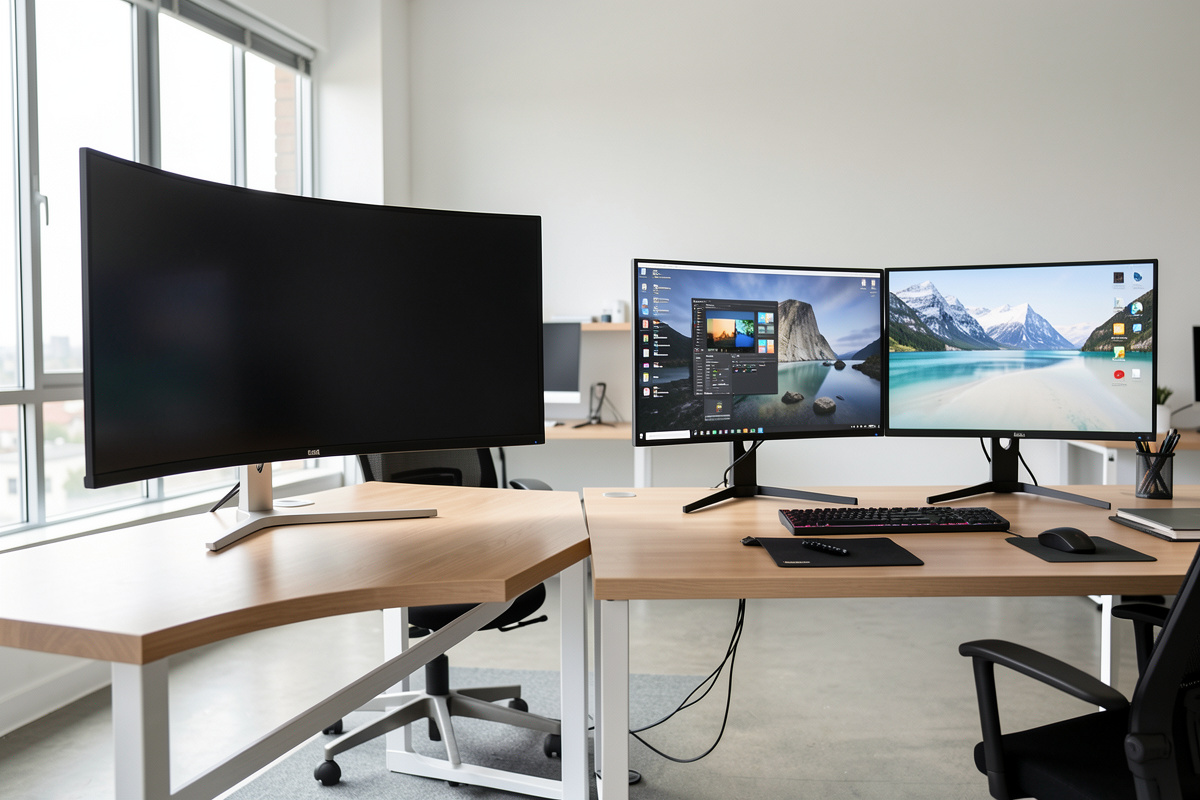

An ultrawide — typically a 34 to 49-inch panel — gives you one continuous canvas with no center bezel and a single cable run; a dual setup gives you a hard divide between tasks and the option to rotate one screen vertical. Neither is universally better. Choose the ultrawide if you want a seamless workspace and the simplest geometry; choose dual if you want to wall off tasks, mix orientations, or keep costs down. The deciding factor is how your eyes and windows move across your work, not the spec sheet.
I have set up both and lived with each long enough to log the trade-offs honestly. This compares them on the things that actually change your day — the bezel, desk space, the arm math, cabling, and cost — and ends with which one I would pick for which kind of work. It is a comfort-and-workflow comparison, not a health claim of any kind.
The Bezel: One Canvas vs a Hard Divide
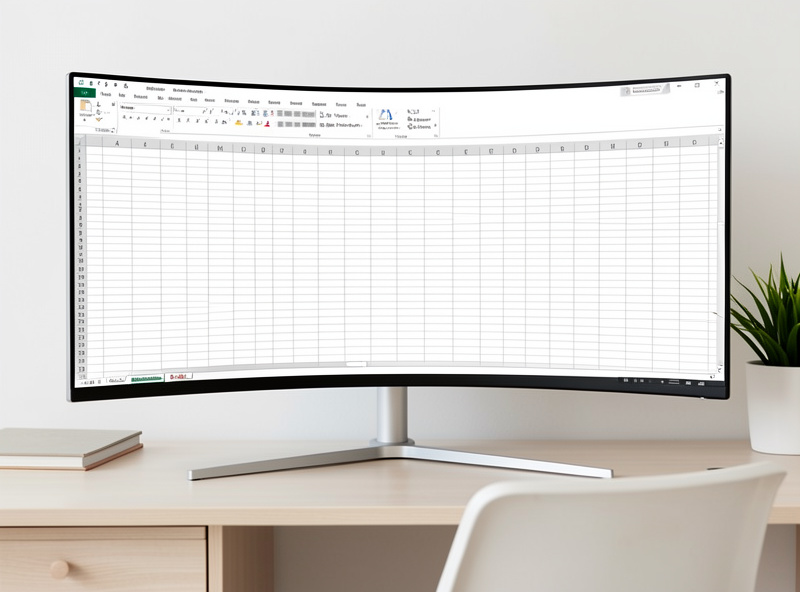
The single biggest difference sits dead center. A symmetric dual setup puts a bezel-and-seam line right where you look most, and even slim-bezel monitors leave a visible break. An ultrawide erases it — one unbroken panel, so a wide spreadsheet, a long timeline, or a single maximised window flows across the whole thing without a bar through the middle. If your work is one big continuous surface, that seamlessness is the ultrawide’s headline win.
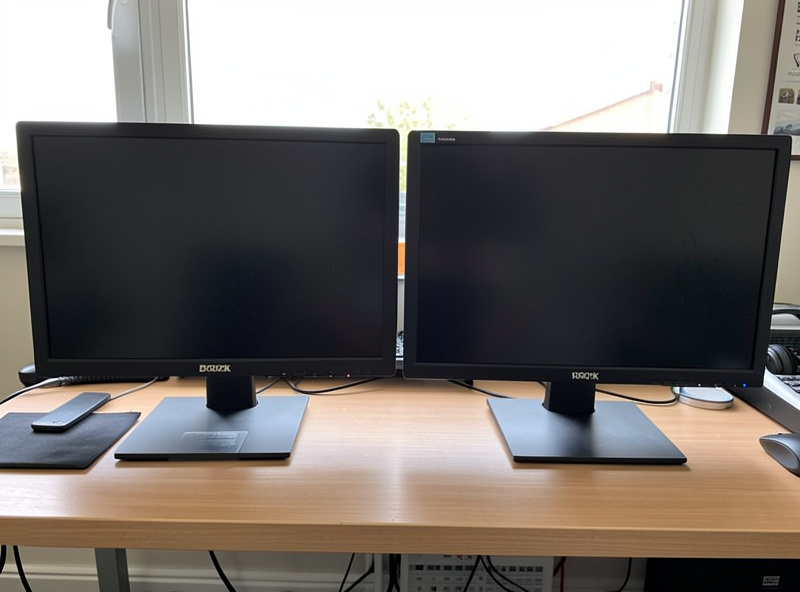
But the seam is not always a flaw. On a dual setup it is a natural divider — main work on one screen, reference or chat walled off on the other, with a clear physical boundary your eyes use to switch context. Some people find that hard divide focuses them; others find it annoying. And the seam disappears entirely if you angle a dual setup asymmetrically, with one primary square in front. Which arrangement suits you is in the primary vs secondary monitor positioning guide.
Geometry: Which Is Easier to Get Right
An ultrawide is easier to position because there is one panel to deal with — one height, one distance, one tilt, and the gentle factory curve already aims the edges at you. A dual setup has two of everything to match and a toe-in angle to set. From a pure get-it-right standpoint, the ultrawide is the lower-effort geometry.
The ultrawide’s catch is distance. A wide panel needs to sit far enough back that its far edges are not at an awkward angle, which on a shallow desk can be a problem — you may need more desk depth than a dual setup that toes its panels in. Curve rating matters here too: a more aggressive curve (1800R, 1500R) brings the edges in closer to a consistent distance, which is the whole point of the curve. The distance math for both layouts is in the eye distance from dual monitors guide, and the matching/angle method for dual is in the dual monitor height and angle guide.
The Arm Math Changes Completely
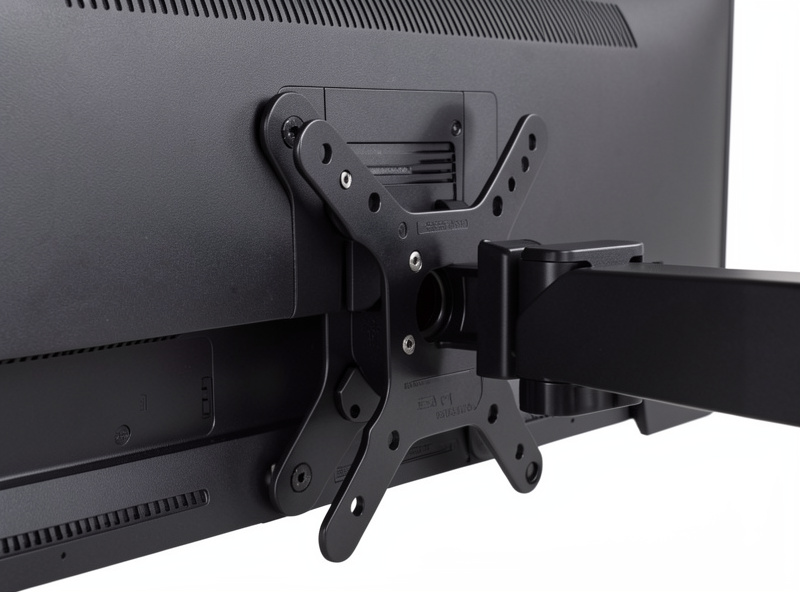
This is where people get caught. A 34-inch or 49-inch ultrawide is heavy and, more importantly, wide — which means long leverage on the mount. You cannot hang one on a standard dual arm or a light single arm; it needs an arm rated for both the weight and the width, often with a wider VESA bracket or a dedicated ultrawide mount. The torque a wide panel puts on a clamp is real, and an underrated arm will sag or wobble.
A dual setup spreads its weight across two lighter panels, so each arm has an easier job, and you have more mounting flexibility — two single arms, a dual arm, or a mix. If you are going ultrawide, read the load-and-width requirements before you buy the mount; I covered the general load math in the monitor arm weight rating guide and the two-screen hardware options in the dual monitor arm comparison. The desk-thickness reality applies to both and is in the monitor arm desk thickness guide.
| Factor | Ultrawide | Dual monitors |
|---|---|---|
| Center bezel | None — one canvas | Visible seam (unless asymmetric) |
| Task division | Soft, software-managed | Hard physical divide |
| Orientation mix | Landscape only | Can run one portrait |
| Mounting | Heavy-duty / ultrawide arm | Lighter arms, more options |
| Cables | Single run | Two of everything |
| Desk depth needed | More (wide panel) | Less (panels toe in) |
| Typical cost | Higher per setup | Two cheaper panels |
Cables and Desk Clutter
An ultrawide runs one video cable and one power lead — genuinely tidy, and one of its quiet advantages. A dual setup doubles the cabling exactly where it shows, and if the panels are on arms that move, that cable run has to be managed so it does not fight the arm. It is solvable, but it is work the ultrawide skips entirely. If you go dual, the routing method for moving arms is in the cable routing for dual monitor arms guide.
Resolution, Windows, and Gaming
On the software side, a dual setup gives you two independent full-screen targets — one app maximised per screen, cleanly. An ultrawide is one display, so maximising fills the entire width, and you lean on window-snapping or a window manager to split it into zones. Some people love managing zones on one big canvas; others prefer the no-effort two-target simplicity of dual. For video calls and full-screen apps, dual’s clean second target is genuinely easier.
For gaming, an ultrawide is the clear winner where the game supports the aspect ratio — an immersive wraparound with no bezel through your crosshair. Dual monitors are poor for gaming because the bezel lands center-screen, though the second panel is handy for a map, chat, or a guide beside a windowed game. If gaming is a real part of your use, that alone can decide it. The whole decision sits under the dual monitor setup guide if you want the broader geometry context.
How I Would Choose
Go ultrawide if you want a seamless single canvas, do wide continuous work like spreadsheets, editing timelines, or aspect-ratio gaming, and have the desk depth and a mount rated for the panel. Go dual if you want a hard task divide, want to run one screen vertical, value two clean full-screen targets, or want to spend less on two ordinary panels than one premium wide one. For mixed office work where reference material lives beside the main task, I still lean dual with a portrait secondary — but a writer or editor who lives in one wide flow is better served by the ultrawide. There is no trophy here, only the fit. If you land on dual, the horizontal vs vertical monitor orientation guide helps you decide what that second screen should do.
Frequently Asked Questions
Is an ultrawide better than two monitors?
Not universally. An ultrawide gives a seamless canvas with no center bezel and one cable, best for wide continuous work and aspect-ratio gaming. Two monitors give a hard task divide and the option to run one vertical. Choose by how your windows and eyes move across your work.
Does an ultrawide replace a dual monitor setup?
For continuous wide work, often yes. For mixed work where you want a reference screen walled off or rotated to portrait, no, because an ultrawide is a single landscape canvas. It cannot be split into a separate physical portrait panel the way two monitors can.
Do ultrawide monitors need a special arm?
Usually yes. A 34 to 49-inch ultrawide is heavy and wide, putting long leverage on the mount, so it needs an arm rated for both weight and width, sometimes with a dedicated ultrawide bracket. A standard dual arm or light single arm will sag or wobble under it.
Is an ultrawide or dual setup better for gaming?
An ultrawide, where the game supports the aspect ratio, because it wraps around with no bezel through the center of your view. Dual monitors are poor for gaming since the bezel lands center-screen, though the second panel is useful for a map or chat beside a windowed game.
Which uses less desk space, ultrawide or dual?
Dual panels can toe inward and sit closer, while an ultrawide is one wide panel that needs more depth so its far edges are not at an awkward angle. A curved ultrawide helps, but on a shallow desk two angled monitors often fit a tight space more easily.
Is an ultrawide or dual monitor cheaper?
Two ordinary monitors usually cost less than one premium ultrawide of equivalent total width and resolution. The ultrawide saves you one arm, one set of cables, and the matching effort, so the real comparison is total setup cost, not just the panel price.
