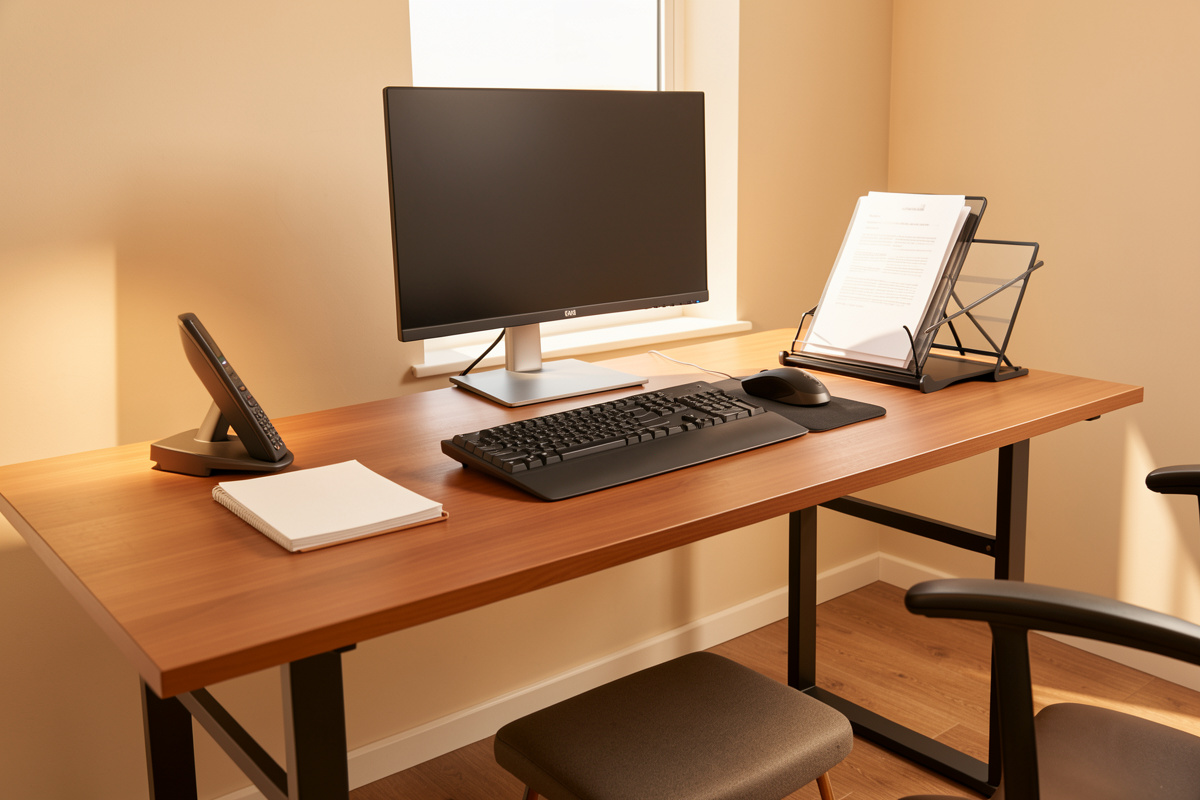

The short answer: before you buy a single peripheral, fix your geometry — desk height to elbow height, eye line to the top of the screen, monitor distance around an arm’s length. That free adjustment beats most purchases. A peripheral only earns money when a measured dimension or a logged load tells you it will.
I keep a setup log. Every desk I’ve built gets its desk height, elbow height, monitor distance and tilt written down before I sit in it for real, and every bench I run gets measured before it gets used — the desk just happens to be the bench I live at. That habit is the whole filter for this guide. I’m not going to tell you a wrist rest changed my life, because it didn’t. I’m going to tell you which peripheral categories actually move the comfort needle, who they’re for, and the single measurement that decides whether you should spend anything at all.
This is the overview page for everything you touch all day at a desk: the keyboard, the pointing device, wrist and palm support, the document holder, the footrest, and desk audio. Each category gets its own deep-dive spoke, and I’ll link those as we go. But the spine of the whole thing is the same line I come back to every time someone asks me what to buy: measure your own setup first, then see whether the gear has a dimension that closes a real gap.
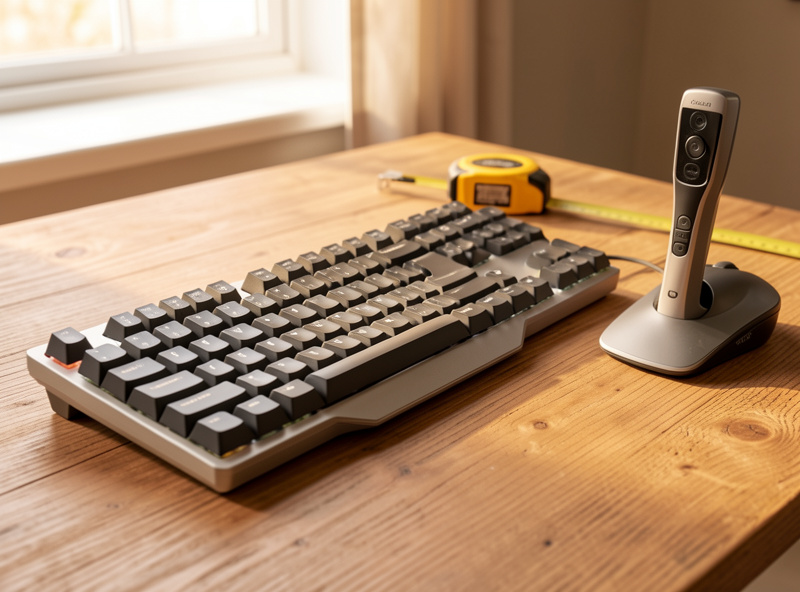
Geometry is the free fix that beats most purchases
Before any peripheral, dial in three numbers: desk surface near elbow height with your shoulders relaxed, the top of your screen at or just below eye line, and the monitor about an arm’s length away. Get those right and most “ergonomic” upgrades stop feeling necessary.
Here is what I see again and again. Someone buys a vertical mouse, a split keyboard and a gel wrist rest, and they’re still uncomfortable — because the desk is two centimetres too high and the monitor sits low enough that they crane forward all day. No peripheral fixes a desk that’s the wrong height. When I set up a new config I start with the desk height guide numbers, get the surface near my elbow height, then check the screen against the monitor height and eye line rule before I add a single accessory.
The geometry layer is the cheapest, most reliable comfort lever there is, and it costs nothing but a tape measure and ten minutes. Monitor distance matters as much as height: too close and your eyes work harder, too far and text gets small enough to drag you forward. I size it off the monitor distance by screen size ranges and verify it at the desk with a laser measure. Only once those three numbers are logged do I let myself ask which peripheral, if any, is solving a real problem rather than a geometry problem in disguise.
How I decide whether a peripheral earns money
My test is simple: a peripheral earns money when a specific dimension or a logged load backs the buy. If I can’t name the measurement it improves — wrist angle, mouse travel width, screen-to-document distance, foot support height — it’s furniture-shaped marketing and I skip it.
Comfort and fatigue are the only outcomes I’ll claim. I’m a measurement person, not a clinician, so I won’t tell you a gadget prevents anything or fixes a body. What I will tell you is whether you’ll feel a difference at the desk after a few weeks of real use. The honest split across every category below is roughly two buckets: things you genuinely feel once your geometry is already right, and things that are mostly aesthetics or marketing wearing an “ergonomic” label.
The deciding measurement changes per category. For input devices it’s where your hands and elbows actually sit, which I cross-check against the keyboard and mouse position guide. For a footrest it’s the gap between your feet and the floor once the chair is set for your femur length. For a document holder it’s the distance and angle your eyes travel between page and screen. Name the number, then decide. That order — measure, then maybe buy — is the entire framework, and it’s why this hub keeps pointing you back at your own setup log instead of at a shopping list.
The peripheral categories at a glance
Here’s the whole landscape in one table: what each category actually fixes, who needs it, a rough price band, and my blunt feel-it-or-furniture verdict. Read it as a triage chart — most people need two or three of these, not all of them.
| Category | What it actually fixes | Who needs it | Rough price band | Feel-it-or-furniture verdict |
| Keyboard (ergonomic/split) | Wrist angle, shoulder width, typing reach | All-day typists with wrist or shoulder strain | Mid to high | You’ll feel it — once geometry is right |
| Pointing device (vertical/trackball) | Forearm rotation, mouse travel width | Heavy mouse users, wide-grip hands | Low to mid | You’ll feel it for many |
| Drawing tablet as mouse | Repetitive wrist micro-motion, grip variety | Designers, hand-fatigue cases | Low to mid | Situational — feel it if you switch grips |
| Wrist / palm support | Wrist extension while resting, not typing | People who rest hands between bursts | Low | Mostly furniture unless used correctly |
| Document holder | Neck twist, eye refocus distance | Anyone reading paper next to a screen | Low | You’ll feel it if you read paper daily |
| Footrest | Feet-to-floor gap, thigh pressure | Shorter users, fixed-height desks | Low | You’ll feel it if your feet dangle |
| Desk audio (headset/speakers) | Head clamp comfort, call fatigue | Call-heavy and long-session workers | Low to high | Comfort-dependent, measure clamp force |
Notice the pattern: almost every “you’ll feel it” verdict carries a condition. The keyboard only pays off once your desk and chair geometry are right. The footrest only matters if your feet actually dangle. The wrist support is mostly furniture unless you use it the way it’s meant to be used. That conditional is the honest part most product pages leave out, and it’s why I measure before I shop.
Input devices: keyboard and pointing
The keyboard and mouse are the two things your hands touch most, so they’re where measured ergonomics pays back fastest — but only after your keyboard height for typing is set so your forearms run roughly level and your wrists aren’t bent up.
Ergonomic keyboards
An ergonomic or split keyboard fixes three measurable things: the inward bend of the wrists (ulnar deviation), the width your shoulders are forced to, and how far your fingers reach. A standard board pins your hands close together; a split or columnar layout lets them sit at shoulder width with the forearms straight. That’s a real geometry change you can measure, not a vibe.
Who needs one? All-day typists who already have their desk and chair dialled in and still feel wrist or shoulder tightness. If your geometry is wrong, fix that first — a split board on a too-high desk just relocates the problem. In my setup log the split frame earned its keep only after I’d lowered the surface to elbow height. The full decision tree, including tenting angle and whether to go wired, lives in the ergonomic keyboard buying guide. If you want to browse current options, here’s an ergonomic split keyboard search to start from — but read the spoke before you spend.
Mice, vertical mice and trackballs
The pointing device decides your forearm rotation and how far your hand travels sideways all day. A flat mouse keeps your forearm pronated (palm-down) the whole session; a vertical mouse rotates it toward a handshake position, which many people feel as less forearm tension. A trackball removes the travel entirely by keeping the hand still. Each is a different measured trade, not a ranking.
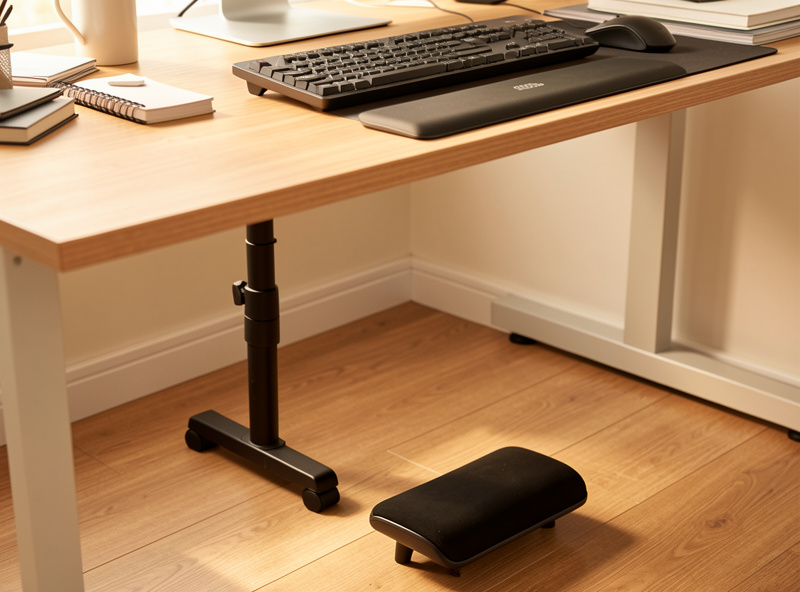
The measurement that decides the buy is mouse travel width — how far your hand has to move for normal work — which I check against the mouse position for desk work ranges. If your mouse is parked too far right, no shape fixes the reach; you fix the placement first. I measure where my hand actually lands and place the mouse there before I judge the device. The full shape-by-shape breakdown is in the ergonomic mouse buying guide, and there’s a vertical ergonomic mouse search if you want to see the field.
A drawing tablet as a mouse alternative
A pen tablet swaps your grip from a clenched mouse to a pen hold, which changes the muscles doing the work. For some heavy mouse users that grip variety is the relief — not because the tablet is magic, but because alternating grips spreads the micro-motion across more of the hand. It’s situational, and I treat it as such.
Who needs it? Designers obviously, but also people whose mouse hand fatigues and who are willing to relearn pointing. The honest verdict is “feel it if you switch grips” — if you’d use the pen full-time you may not benefit much, but as a second pointer it gives the dominant mouse muscles a break. The full case, including how it fits next to the keyboard, is in the drawing tablet as a mouse alternative guide.
Wrist and palm support: used right or it’s furniture
A wrist rest only helps if you use it the way it’s designed: as a place to rest your palms between typing bursts, not a ledge to plant your wrists on while you type. Used wrong, it bends the wrist up and makes things worse. Used right, it’s a low-cost comfort piece.
The measurement that matters is wrist extension — the upward angle of the wrist relative to the forearm. While you type, that angle should be near neutral, which means the rest supports the heel of the palm, not the wrist joint, and only when your hands are paused. If you find yourself anchoring your wrists on the pad and pivoting from there, the pad is actively working against you. That’s why my verdict is “mostly furniture unless used correctly.”
Height is the other dimension: the rest should sit flush with the front edge of the keyboard so the hand stays level, not propped up. A pad that’s taller than your keyboard’s home row introduces the exact upward bend you’re trying to avoid. I match the pad height to the board and confirm my hands stay neutral against the keyboard and mouse position guide. The full sizing and material breakdown — gel versus foam, palm versus wrist support — is in the wrist pad ergonomic guide. It’s a cheap category, so the only real risk is buying the wrong height and using it as a wrist anchor.
The document holder: the cheapest neck win there is
If you read paper next to your screen, a document holder is one of the highest-value low-cost peripherals there is. It fixes neck twist and constant eye refocusing by putting the page at the same distance and height as the monitor instead of flat on the desk where you crane down to it.
The measurement that decides it is the distance and angle your eyes travel between page and screen. Paper flat on the desk sits maybe 30 centimetres lower and closer than your monitor, so every glance is a refocus plus a neck dip. An inline holder — the kind that sits between keyboard and screen — or a side-mounted one brings the page up to roughly screen distance, so your eyes barely change focus. That’s a genuine, measurable comfort win for anyone doing data entry, transcription or reference reading.
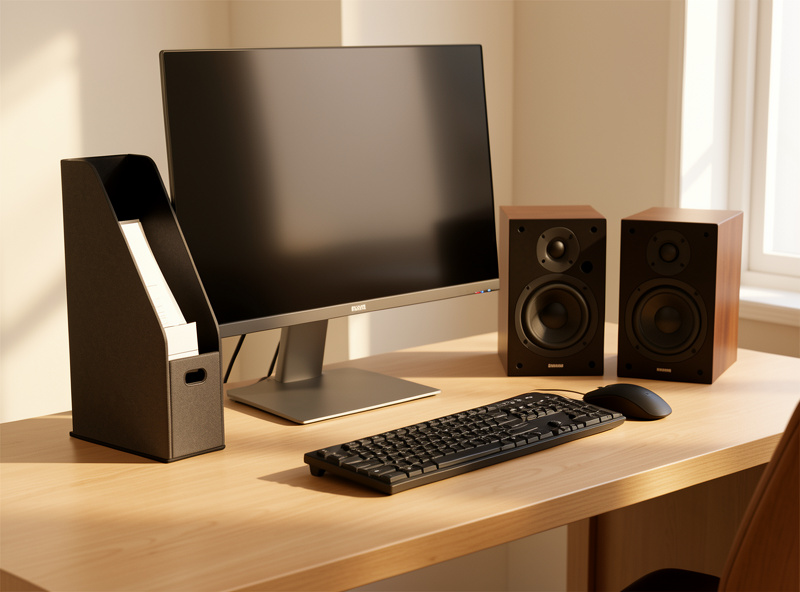
Who doesn’t need one? Anyone who never touches paper — which is plenty of desk workers now. But if you do, this is the category where I most often say “yes, buy it,” because it solves a problem that geometry alone can’t: your monitor can be perfectly placed and the paper is still in the wrong spot. The placement, angle and inline-versus-side trade-offs are in the document holder ergonomic guide. Pair it with a correctly placed screen using the monitor height and eye line numbers so the page and screen sit at matching height.
The footrest: only if your feet dangle
A footrest fixes exactly one thing: the gap between your feet and the floor once your chair is set correctly for your seat height. If your feet are flat on the floor with thighs roughly parallel to it, you don’t need one. If they dangle, the front edge of the seat presses into your thighs and a footrest is the fix.
This is where geometry and peripheral overlap. You set chair height for your forearms and desk first — using the ergonomic chair guide for seat depth and femur length — and on a fixed-height desk that can leave shorter users with their feet off the floor. You can’t lower the desk, so you raise the floor with a footrest. The deciding measurement is that feet-to-floor gap after the chair is dialled in; measure it before you buy so you get the right height range.
Who needs it? Shorter users, anyone on a non-adjustable desk, and people who’ve raised their chair to reach a high surface. The verdict is a clean “you’ll feel it if your feet dangle” and “skip it if they don’t.” A tilting or rocking footrest adds a bit of movement, which some people like for circulation; that’s comfort, not a health claim. Full height ranges and the tilt-versus-flat call are in the footrest desk ergonomic guide.
Desk audio: headset versus speakers
Audio gear counts as a peripheral the moment your job is call-heavy, because head-clamp comfort and call fatigue are real, measurable desk problems. The decision is headset versus speakers, and it comes down to how many calls you take, whether you need a boom mic, and how much clamp force your head will tolerate over a full day.
The measurement here is clamp force — how hard the headset squeezes — plus earpad depth so your ears aren’t crushed against the driver. A headset with too much clamp is genuinely uncomfortable by hour three, which is fatigue, not preference. Speakers remove the clamp entirely but trade away the boom mic and isolation, so heavy-call users usually land on a headset and everyone else can run speakers. I judge it on hours-on-head comfort, not spec-sheet frequency response.
Who needs which? Call-centre and meeting-heavy workers want a comfortable headset with a real mic; people who mostly listen and rarely call are better served by desk speakers that keep their ears free. Either way it’s about all-day comfort over a long session. The full clamp-force, mic and isolation breakdown is in the headset versus speakers for desk work guide. If you browse, here’s a comfortable office headset search to start the comparison.
Where peripherals fit special cases: laptops and small spaces
Two setups change the math. A laptop forces a compromise because the screen and keyboard are fused at the wrong distance, so peripherals stop being optional — an external keyboard and mouse plus a riser are what let you fix the geometry at all. The full docking approach is in the laptop ergonomics and docking guide, and it’s the one case where I tell people to buy input devices before anything else.
Small spaces flip the priority too. When the desk is shallow, monitor distance and where the mouse lives get tight, and a few peripherals — a compact keyboard, a clamp-on monitor arm, an inline document holder — buy back the depth you don’t have. I work those constraints in the small space desk guide, sizing everything off the same measured numbers rather than guessing. In both cases the framework holds: measure the constraint, then pick the peripheral whose dimension closes the gap.
How I’d spend the money, in order
If you’re starting from zero with the geometry already fixed, my measured priority is: get the input devices right first because you touch them most, add a document holder if you read paper, add a footrest if your feet dangle, sort the audio if you’re on calls, and treat wrist support as the last and cheapest item — useful only if you use it correctly.
That order isn’t a hierarchy of importance so much as a hierarchy of how reliably you’ll feel the spend. The keyboard and pointing device touch your hands for hours, so a measured improvement there compounds. The document holder and footrest are conditional but high-value when the condition applies. Audio is comfort-dependent and personal. Wrist support is the one I’d never lead with, because it does more harm than good when used wrong. Run your own setup log, name the measurement each item improves, and let that decide the sequence — that’s the same process I use on every config I build.
Build your own setup log before you buy anything
The single most useful thing on this whole page costs nothing: write down your numbers. Before any purchase I record desk height, elbow height, monitor distance, the screen’s top edge against my eye line, and the feet-to-floor gap once the chair is set. Those five measurements tell me, on paper, whether a peripheral has a real gap to close or not.
It takes ten minutes with a tape measure and turns shopping into triage. If elbow height matches desk height, the wrists are level and the monitor is an arm’s length out with its top at eye line, most of the “ergonomic” catalogue is solving a problem you don’t have. The log also stops you re-buying the same fix twice — I’ve watched people stack a wrist rest on top of a too-high desk and wonder why nothing improved, when the log would have shown the desk was the variable to change. I cross-check every config against the keyboard and mouse position guide so the hand placement numbers are honest, not guessed.
The other quiet benefit is that a log makes the conditional categories obvious. Feet dangle? The footrest line in your log says so. Reading paper daily? Then the document holder earns its place. No paper, feet flat, geometry clean? You’ve just saved yourself three purchases. That’s the entire value of measuring first: it tells you what to skip, which is worth more than any single product recommendation I could make. Every bench I run gets logged before it gets trusted, and the desk is no different.
For workstation layout fundamentals beyond shopping, the U.S. OSHA Computer Workstations eTool lays out the geometry references ergonomics researchers point to; I treat it as a measurement checklist, not a prescription.
As an Amazon Associate I earn from qualifying purchases.
Frequently asked questions
Do I need ergonomic peripherals if my desk geometry is already right?
Often not. Correct desk height, eye line and monitor distance solve most comfort issues for free. Add a peripheral only when a specific measurement — wrist angle, feet-to-floor gap, reading distance — still shows a real gap after the geometry is set.
Which ergonomic peripheral gives the most comfort for the lowest cost?
For paper-heavy work, the document holder. It fixes neck twist and eye refocusing by raising the page to screen height and distance, costs little, and solves a problem geometry alone cannot. A footrest is the next best low-cost win if your feet dangle.
Is a wrist rest actually good for you?
Only used correctly. A wrist rest supports the palms between typing bursts; planting your wrists on it while typing bends the wrist upward and works against you. Match its height to the keyboard edge and keep wrists neutral while typing.
Vertical mouse or regular mouse — how do I decide?
A vertical mouse rotates the forearm toward a handshake position, which many heavy mouse users feel as less forearm tension. Decide by mouse travel width and grip comfort, and fix your mouse placement first — no shape fixes a mouse parked too far away.
When does a footrest actually help?
Only when your feet dangle after the chair is set correctly for your seat height. Measure the gap between your feet and the floor once the chair is dialled in; if there’s a gap and you cannot lower the desk, a footrest raises the floor to close it.
Headset or desk speakers for working at a desk?
Call-heavy workers usually want a comfortable headset with a real mic; judge it by clamp force and earpad depth over a full day. People who mostly listen and rarely call are better with desk speakers that keep their ears free of clamp pressure.
